
 YouTube Automation
Best AI Thumbnail Generator for YouTube – 9 Powerful Tools (Blog#: 89)

Your thumbnail is the main reason people click on your video, or ignore it and keep scrolling. You spend hours making videos, but sometimes the best AI thumbnail generator for YouTube is the missing piece that can help your channel grow faster.
The truth is, many creators use the best AI thumbnail generator for YouTube tools but still do not get good results, not because the tools are bad, but because they choose the wrong one for their niche, budget, or skill level. YouTube gets more than 720,000 hours of video uploaded every single day, according to MindStudio, and your thumbnail has less than 2 seconds to catch someone’s attention before they scroll away.
In this guide, you will discover 9 powerful and proven tools that real creators use to improve their CTR, no design degree, no expensive software, and no more guessing.
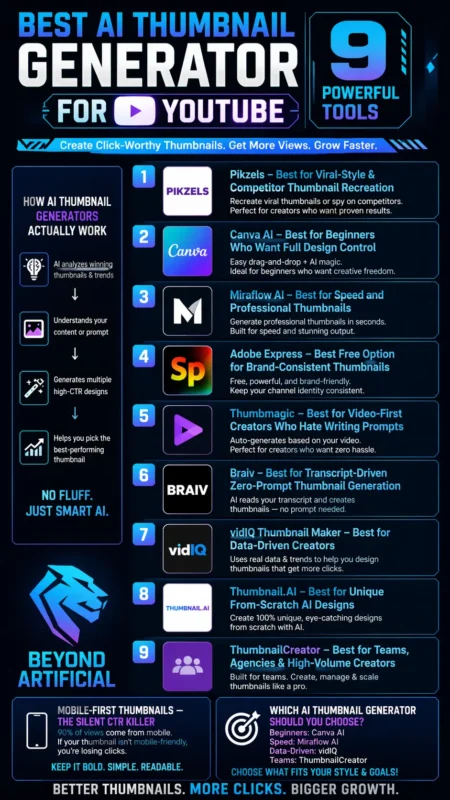
And if you want to take your content game even further, check out our guide on the Best Video AI Generator , because a stunning thumbnail deserves an equally stunning video behind it.
How AI Thumbnail Generators Actually Work: No Fluff, No Jargon.
Think of an AI thumbnail generator like a smart design assistant that already knows what kind of thumbnails get clicks on YouTube. It has studied millions of viral thumbnails, colors, faces, text styles, and layouts, and now it uses that knowledge to create your thumbnail in seconds. When you type a prompt, the AI understands your idea, compares it with successful thumbnail patterns, and then builds a design that is more likely to get clicks.
No Photoshop, no design skills, and no stress needed. The more advanced tools in 2026 can even look at your video, pick the best frames, understand your content, and create a thumbnail that matches your video properly. This helps avoid misleading clickbait and can improve your watch time.
Pro tip: Always write a clear and detailed prompt. For example, instead of writing “gaming video,” write something like “shocked gamer face, neon green background, bold white text.” The more detail you give, the better the result you get. A good thumbnail should do three things in less than half a second: grab attention, show value, and create curiosity. Bonus tip: Always check your thumbnail on a mobile screen before uploading it, because most viewers use phones. Something that looks good on a computer may look too small or unclear on mobile.
Once you understand how AI thumbnail generators work, you stop guessing and start using them properly, and that is when your channel starts growing faster.
1. Pikzels: Best for Viral-Style & Competitor Thumbnail Recreation
If you have ever seen a competitor’s video get lots of views while yours gets almost no clicks, even though your content is better, Pikzels is designed to solve exactly that problem. Pikzels is an AI tool made only for YouTube creators. It uses a smart system trained on successful thumbnails to help you create high-click thumbnails in seconds. You do not need Photoshop or a designer.
It has two main features:
- Prompt to Thumbnail: You simply describe your idea, and the AI creates a thumbnail for you.
- Recreate Feature: You can paste a competitor’s viral video link, and Pikzels studies the thumbnail style, layout, and design. Then it helps you create a similar idea in your own unique way.
Pro Tip: When using the Recreate feature, set the inspiration level to “High,” then change the colors, text, and face so the final design becomes your own original version. Pikzels also has a Pikzels Score feature. It checks your thumbnail based on five things: Virality, Clarity, Idea, Curiosity, and Emotion. This helps you improve your design before uploading.
Bonus Tip: You can use the FaceSwap feature to add your own face to the thumbnail. Just make sure your photo is clear and well-lit so it looks natural. Pikzels starts at around $20/month and is used by many creators. If you are serious about improving your CTR, it can be a strong tool to try for your next video.
2. Canva AI: Best for Beginners Who Want Full Design Control
If you are a beginner and you have ever opened Photoshop, looked at a blank screen, and then closed it because it felt too confusing, Canva AI is made to solve exactly that problem. Canva gives you easy AI tools like Magic Media and Dream Lab, where you can type a simple idea and it will create thumbnail designs for you. You can also choose from thousands of YouTube thumbnail templates and edit everything easily, like text, colors, images, and fonts, using drag-and-drop tools. No design skills needed.
Its Brand Kit feature lets you upload your logo, colors, and fonts one time. After that, Canva automatically uses them in every design. This helps your thumbnails look clean, consistent, and professional without extra effort.
Pro tip is to use Canva’s Magic Resize feature to turn one thumbnail into different sizes for YouTube, Instagram, and TikTok in just one click. This saves a lot of time and keeps your branding the same everywhere. Canva can save you a lot of time compared to Photoshop, so instead of struggling with design, you can focus more on making videos. Bonus tip: When using Dream Lab, upload an example image of the style you like. Canva will follow that style and create a thumbnail that matches your channel instead of giving random results.
Canva Pro costs around $15 per month and gives you access to more AI features like Magic Studio, Background Remover, and Brand Kit. For beginners who want easy and good-looking thumbnails, it is a very strong option.
3. Miraflow AI: Best for Speed and Professional Thumbnails
If you are a creator who uploads videos every week and spends more time making thumbnails than recording content, Miraflow AI can really make your work easier and faster. Miraflow can create a full, high-quality thumbnail in just 30 seconds. It is trained on top-performing YouTube videos from 2025 and 2026, so it already understands what type of thumbnails get clicks instead of just guessing.
It also works for both YouTube videos (16:9) and Shorts (9:16). You can type a prompt, change styles, adjust images, and even fix small parts using editing tools. This means you do not need any extra software. Pro tip: Always use clear and detailed prompts. For example, instead of writing “fitness video,” write something like “muscular person lifting weights, serious face, dark gym background, space for bold text.” This gives much better results.
If only one part of your thumbnail looks wrong, you can fix just that part using the inpainting tool instead of making the whole thumbnail again. This saves a lot of time and effort. Bonus tip: Always create 2–3 versions of your thumbnail and check them on a mobile screen. The one that looks best on a phone is usually the winner, because most viewers use mobile devices
.Miraflow AI starts at around $10 per month for basic use and goes up to higher plans for more thumbnails. It is a fast and affordable option for serious creators who want better thumbnails without wasting time.
4. Adobe Express: Best Free Option for Brand-Consistent Thumbnails
If you are worried that AI-generated thumbnails might cause copyright issues on your monetized YouTube channel, Adobe Express is a very safe option. It uses Adobe Firefly AI, which is trained only on licensed and public domain content. This means the thumbnails you create are safe to use for commercial YouTube channels without legal concerns.
Adobe Express lets you start with ready-made templates or create thumbnails from simple text prompts. You can also remove backgrounds in one click and save your brand logo, colors, and fonts using the Brand Kit. This makes every thumbnail look clean, consistent, and professional. If you already use Adobe Creative Cloud, Adobe Express is included in your subscription, so you can use it without extra cost.
Pro tip: Do not waste your free credits on rough ideas. First, plan your thumbnail clearly, then use the AI only for the final design. This helps you get better results with fewer attempts. The Generative Fill feature is very useful. It lets you fix or change only one part of your thumbnail, like the background or an object, without changing the whole design. Bonus tip: Set up your Brand Kit before creating your first thumbnail. Add your logo, choose your main colors, and pick your font. This will make all your thumbnails look consistent and professional.
Each prompt in Adobe Express gives you four different thumbnail options. Always generate all four, compare them on a mobile screen, and choose the one that grabs attention the fastest, because that is how viewers will also react.
Thumbnails are just one piece of the puzzle. If you want to supercharge your entire content workflow, do not miss our full breakdown of the
Best AI Tools for Content Creation in 2026
5. Thumbmagic: Best for Video-First Creators Who Hate Writing Prompts
If you are a creator who prefers making videos instead of writing long thumbnail prompts, Thumbmagic is made for you. Instead of writing prompts, you simply upload your video or paste your YouTube link. The AI then studies your video, finds the most interesting moments, and creates two thumbnail options in about 45 seconds. You do not need any design skills or descriptions.
One of its best features is the Expression Changer. You upload one photo of your face, and the tool creates different emotions like surprised, happy, angry, excited, and curious. This gives you many thumbnail styles without needing a photo shoot. Pro tip: If something in the thumbnail is not perfect, you can just type simple instructions like “make background darker,” “move text up,” or “change color to red.” The AI will update it instantly.
Thumbmagic also has a free Thumbnail Rater tool. It checks your thumbnail and gives a score based on things like text clarity, colors, face position, and overall design. It also tells you what to fix before uploading. Bonus tip: Always create at least 2 thumbnail options and compare them on a mobile screen. The one that grabs attention fastest is usually the best choice.
Thumbmagic offers a free plan with a few generations, and paid plans start at around $17 per month. It is a good option for creators who want fast thumbnails without writing prompts or using complex tools.
6. Braiv: Best for Transcript-Driven Zero-Prompt Thumbnail Generation
If you have ever felt like you need advanced writing skills just to explain a thumbnail idea to an AI tool, and it has made you frustrated with AI tools, then Braiv is designed to remove that problem completely. Braiv uses a “no prompt needed” system. Instead of asking you to write descriptions, it reads your video transcript and uses the real content of your video to create relevant and clickable thumbnails.
You just upload your video or import it, and Braiv automatically analyzes it. It picks the most interesting parts and generates thumbnails in a few minutes. You can also publish directly to your YouTube channels with one click, which saves a lot of time. Braiv also has a built-in CTR prediction tool. It checks your thumbnail before you upload it and gives suggestions to improve it. It also offers A/B testing, so you can compare two thumbnails and see which one performs better.
Pro tip: Make sure your video transcript is clear and clean before uploading. Remove extra filler words and keep important points simple, because Braiv uses your transcript to create the thumbnail. Braiv also keeps your channel style consistent automatically, so your thumbnails look professional without you manually adjusting colors or fonts every time. Bonus tip: Use A/B testing for two thumbnail versions and run them for 2–3 days. Then check YouTube analytics to see which one gets more clicks and use that style for future videos.
Braiv has a free plan, and paid plans start around $35 per month. It is a strong option for creators who want high-quality thumbnails without spending time on prompts or design work.
7. vidIQ Thumbnail Maker: Best for Data-Driven Creators.
If you are a creator who uploads videos regularly but does not understand why some videos get thousands of clicks and others get almost none, and you are tired of guessing what works, then vidIQ helps you make smarter decisions based on real data. Unlike other tools, vidIQ is not just for making thumbnails. It helps you understand what content to create first. It gives you daily video ideas, keyword research, competitor insights, and trend alerts so you know what people are actually searching for.
This data helps you design thumbnails that match what viewers already want to watch. Pro tip: Before creating a thumbnail, check vidIQ’s “Daily Ideas” and pick a keyword that has high search volume and low competition. Then use that keyword in your thumbnail text for better reach and clicks.
vidIQ also offers A/B testing, so you can upload different thumbnail versions and see which one performs better. This helps you learn what your audience prefers instead of guessing. Bonus tip: After uploading a video, check the “Views Per Hour (VPH)” in the first 48 hours. If it is low, try changing the thumbnail quickly. Sometimes a better thumbnail can improve performance in the early stage.
vidIQ is used by millions of creators and is helpful for anyone who wants to grow YouTube using data instead of guessing.
If you are still building your creator setup on a small budget, do not worry, you do not need to spend a lot to create great content. Check out our handpicked list of the best free AI tools for content creators and start making professional content without spending even a single rupee.
8. Thumbnail.AI: Best for Unique From-Scratch AI Designs.
If you are tired of AI tools that keep making the same boring, template-style thumbnails that look like everyone else in your niche, then Thumbnail.AI gives you a different approach. Instead of only using ready-made templates, Thumbnail.AI creates thumbnails from scratch based on your text prompt. You can choose from many styles, upload your own images, and give simple instructions like “add a shocked face” or “use a dark background.”
This helps you create thumbnails that feel more unique and better matched to your video. Thumbnail.AI has two main modes:
- Text-to-Thumbnail mode: You type your idea, and the AI generates a thumbnail instantly.
- Canvas mode: You start with a blank design and fully control everything yourself.
This means you can work fast or take your time depending on your needs. The tool also checks your existing thumbnails and tells you what can be improved, such as emotion, colors, contrast, and audience fit. This helps you understand what makes people click. Pro tip: When writing a prompt, don’t just write your topic. Add details like emotion, background, colors, and face expression. For example: “shocked man, dark sky background, bright yellow text area.”
Bonus tip: Try creating 2–3 different versions of the same prompt. Then compare them on a mobile screen and pick the one that looks most eye-catching. Thumbnail.AI helps you create more original and clickable thumbnails, instead of generic designs that look the same as everyone else.
9. ThumbnailCreator: Best for Teams, Agencies & High-Volume Creators
If you are running a YouTube agency, managing multiple client channels, or uploading 10+ videos every week, you already know the biggest problem: thumbnail creation takes too much time and slows everything down. ThumbnailCreator is built to solve this exact issue. It helps teams create thumbnails much faster using AI, so you do not need extra designers to scale your work.
It is trusted by thousands of creators and has studied millions of successful thumbnails. Because of this, it follows proven patterns like strong colors, clear faces, good text placement, and emotional expressions to improve click rates. With the Agency Plan, teams can create thousands of thumbnails every month, work together easily, and manage multiple client brands in one place.
Pro tip: When you onboard a new client, first analyze their best-performing thumbnails. Then let the AI copy that style so all new thumbnails match their brand automatically. This saves a lot of time and keeps everything consistent. The tool also gives a clickability score. It checks your thumbnail and tells you how strong it is before you upload it. It looks at things like face expression, text clarity, colors, and layout. Bonus tip: If you manage multiple channels, you can use automation (API), so thumbnails are created automatically whenever a new video is scheduled.
This removes manual work and makes your workflow much faster. ThumbnailCreator uses simple credit-based pricing, so you always know how much you are spending. It is designed for agencies that want to scale thumbnail production without delays or extra workload.
Mobile-First Thumbnails: The Silent CTR Killer 90% of Creators Completely Ignore
The truth is simple but important: over 70% of YouTube views come from mobile phones. But most creators still design thumbnails on big computer screens. Because of this, thumbnails often look great on a desktop but become very small and hard to read on a phone. On mobile, viewers only take about 0.5 seconds to notice your thumbnail. If your text is small, your face is far away, or your design is too busy, people will scroll past it instantly.
When a thumbnail is weak or unclear, it does not just reduce clicks, it also brings the wrong audience. This lowers watch time and tells YouTube not to show your video to more people. So here are simple rules you should follow:
- Use only 3–5 words in big, bold text
- Use bright colors with strong contrast (light on dark or dark on light)
- Use close-up faces with clear emotions
- Avoid full-body images because they are too small on phones
Place the main subject on the left side of the thumbnail. The right side is often covered by YouTube buttons and video duration on mobile. Think of your thumbnail like a billboard on a highway; people should understand it at a quick glance. If someone has to read it twice, you already lose the click. Finally, always check your thumbnail on your own phone before uploading. If it is not clear and eye-catching on a small screen, it will not work for your audience either.
Which AI Thumbnail Generator Should YOU Choose? Our Final Honest Recommendation
If you have ever spent hours editing a video, uploaded it with excitement, and then it only got around 40–50 views, the problem is often not your content. It is usually your thumbnail. The good news is that modern AI YouTube thumbnail tools can now handle things like colors, facial expressions, text placement, contrast, and mobile visibility all at once. This means you do not need design skills to compete with bigger channels anymore.
Some tools also combine multiple features in one place. For example, some can create thumbnails, write captions, and even schedule posts together in one workflow. Others focus only on making high-quality YouTube thumbnails. There are also AI tools that read your video transcript and create thumbnails based on your actual content. This makes the thumbnail more accurate and relevant.
Some of these tools also include CTR prediction and A/B testing, so you can compare results easily. A simple rule to follow is this: choose the tool based on how often you upload videos.
- If you upload rarely (1 video or less per week), use simple tools like Canva AI
- If you upload 2–4 videos per week, use balanced tools that focus on both speed and quality
- If you upload 5+ videos per week, use fast or batch tools that save time
If you already use Adobe tools, Adobe Express is a good option because it is included in many Creative Cloud plans and uses safe, licensed AI content. Another helpful idea is to first look at what is already working in your niche before creating thumbnails. Studying successful thumbnails can save you a lot of time and guessing. The most important thing to remember is this: you don’t need the most expensive tool. You just need one tool that fits your workflow.
Stick with it for a few weeks and focus on improving your thumbnails step by step; that is what actually increases clicks over time.
FREQUENTLY ASKED QUESTIONS (FAQs)
Which AI tool is best for YouTube thumbnails?
If your thumbnails are getting ignored and your views are low, it may be because you are using a general design tool that is not made for YouTube CTR. Braiv is a strong option because it reads your video transcript, creates thumbnails from your actual content, and even predicts CTR before upload. This removes guesswork. For free options, Canva offers AI tools and YouTube templates that are easy for beginners. Pikzels is better for serious creators who want to test and improve thumbnails for higher clicks. Choose the tool based on your budget, upload frequency, and how fast you want to grow.
Can I use AI-generated thumbnails on YouTube?
Yes, you can safely use AI for thumbnails. YouTube does not require you to disclose AI-generated thumbnails. YouTube using AI for thumbnail design, editing, or ideas is fully allowed and does not affect your monetization. The only rule is simple: use AI as a helper, but still apply your own judgment and final editing. AI thumbnail tools are completely safe to use as part of your normal content workflow. Monetization issues only apply to undisclosed realistic AI videos, not thumbnails.
What is not allowed in YouTube thumbnails?
Your thumbnail is not just an image; it must follow YouTube rules. YouTube does NOT allow these in thumbnails:
- Graphic or violent content
- Fake or misleading information
- Hate speech
- Copyrighted content you don’t own
Even if your video is fine, a bad thumbnail can still get your video removed or your channel punished. One common mistake is clickbait thumbnails that show shocking or violent scenes that are NOT actually in the video. This is also against the rules and can lead to penalties. Simple rule: Your thumbnail must always match your real video content.
Do custom thumbnails improve views?
Short answer: yes, a lot. If you are not using a custom thumbnail, you are giving away views to other creators on YouTube. Most top videos use custom thumbnails, not auto-generated ones. Videos with custom thumbnails usually get much higher click rates because they are clearer and more attractive. Some creators also see big improvements in old videos just by changing the thumbnail, getting more clicks, and more views. Simple truth: A good thumbnail can completely change how your video performs.
What mistakes should I avoid in thumbnails?
If your videos get impressions but no clicks, you are likely making some common thumbnail mistakes on YouTube. Most creators make these errors:
- Writing the same text as the video title on the thumbnail (this removes curiosity)
- Using too much text
- Using low-contrast colors that are hard to see on mobile
- Making the design too crowded
- Using misleading images that do not match the video
Another serious mistake is focusing only on CTR. A high click rate does not help if viewers leave quickly. Simple rule: Your thumbnail should be clear, simple, and honest so it attracts clicks and keeps viewers watching.
Best AI thumbnail generator for YouTube free
You work hard on your videos and put in a lot of time and effort, but if people do not click, none of it really matters. The truth is simple: your thumbnail is the main reason people either click or scroll past your video. A good thumbnail can increase your click rate by 30–40%, which can turn a normal video into a viral one. YouTube
The struggle is real. Many creators open Photoshop, get confused with too many tools, or use Canva templates that look like everyone else’s.
After wasting hours, they still end up with a thumbnail that doesn’t feel right. This cycle can slow down your channel growth. But now things are changing. New free AI thumbnail tools can create professional thumbnails in seconds. You can paste your video link, upload your image, and instantly get ready-to-use thumbnails: no design skills or prompts needed.
Some tools, like vidIQ, let you upload your video, analyze it, and generate thumbnails. You can also edit them easily by typing simple instructions like “add bold text” or “darken background.” Other tools like Pixelbin give free monthly thumbnail generation, while Canva AI lets you use templates with AI help. Some tools can even read your video transcript and suggest better thumbnail ideas. Others help you test which thumbnail will perform better before uploading.
Here is a simple guide:nnnn
- No design skills → use vidIQ (just upload and generate)
- Fast and free → use VidIQ free thumbnail tool
- Full control → use Canva AI
- CTR testing → use Braiv-style tools
- Low budget uploads → use Pixelbin free plan
- Quick variations → use Thumbmagic-style tools
The main point is simple: do not let a weak thumbnail destroy a good video. You now have free tools that make the process easy. Just pick one, create your thumbnail in a few minutes, and give your video a better chance to get views.