
 YouTube Automation
How to Turn Off Google AI Mode? 9 Proven Fixes(Blog#:37)

Google search has recently started showing AI-generated summaries called AI Mode, and not everyone likes this change. Many users feel that these AI results make the search more confusing instead of helpful. How to turn off Google AI Mode is now a common question people are asking online.
If you also prefer the classic Google search results, you are not alone. The good news is that there are several simple methods that can help reduce or avoid AI results.
In this guide, you will learn 9 proven fixes to turn off Google AI Mode so you can get back to a cleaner and more traditional search experience.
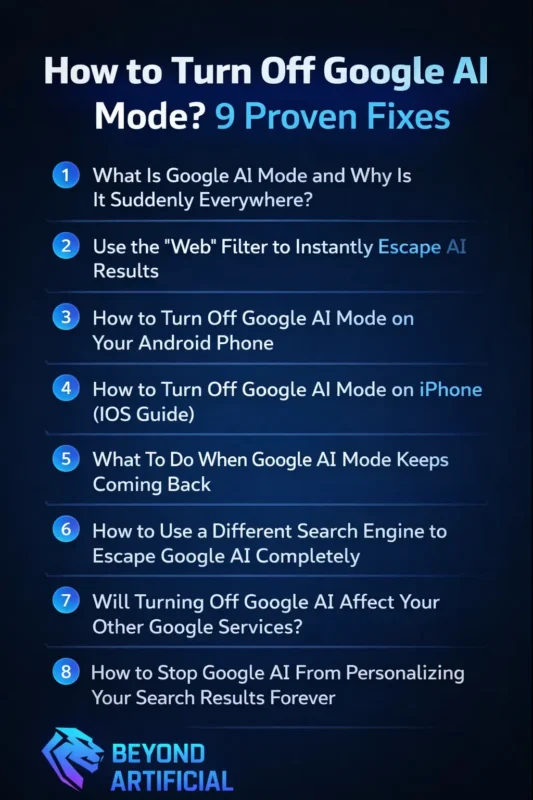
Keep reading and pick your fix, follow the steps, and take back your Google search, starting right now. Thousands of users have already turned off Google AI Mode using these fixes. Don’t be the last one still struggling with it.
1. What Is Google AI Mode and Why Is It Suddenly Everywhere?
Google AI Mode is a new feature that uses artificial intelligence to generate answers at the top of your search results. Instead of only showing links to websites, Google sometimes displays an AI summary first. While this can be helpful for quick information, many users feel it hides the real websites they want to visit. Google has started adding this feature across different devices, including desktop and mobile search.
That is why many people are now looking for ways to manage or avoid these AI results. One simple trick is to click the “Web” tab after you search. This usually shows more traditional search results without AI summaries. You can also check Search Labs settings in your Google account, where experimental AI features like AI Overviews can sometimes be turned off.
Another helpful step is reviewing your Web & App Activity settings. Limiting this activity can reduce how much Google personalizes AI responses based on your past searches. Since Google continues to develop AI features in search, understanding these options can help you keep better control over the results you see.
2. Use the “Web” Filter to Instantly Escape AI Results.
One of the easiest ways to avoid AI-generated results in Google Search is by using the “Web” filter. This option shows more traditional search results that focus on website links instead of AI summaries. You can use the Web filter on both desktop and mobile devices, and it does not require any special settings or extensions. Simply perform your search and then click the “Web” tab to see cleaner and more familiar search results.
If you want to make this even faster, you can bookmark the link( https://www.google.com/search?udm=14). Opening this link will take you directly to the Web filter so you can start searching without AI summaries appearing at the top. On mobile devices, the Web tab may not always be visible right away. If you do not see it, swipe the filter options horizontally until the Web option appears.
Using this filter regularly can help you keep your search experience simple and focused on real websites.
3. How to Turn Off Google AI Mode on Your Android Phone
If you use an Android phone, you may notice Google AI features appearing directly in the Google app, search bar, or search results. For some users, this can feel overwhelming, especially if they prefer the normal list of website links instead of AI summaries. The good news is that Android users can adjust several settings to reduce or manage these AI features.
Start by opening the Google app on your phone. Tap your profile picture in the top-right corner, then go to Settings. From there, check the Google Assistant settings and review any AI-related options that may be enabled. Another place to check is Search Labs inside the Google app. You can usually find it by tapping the small beaker (experiment) icon. Google sometimes tests AI features here, including AI Overviews, and you may be able to turn them off if they are enabled.
You can also review your device’s Google search settings by going to Settings → Google → Search on your Android phone. Here you may find options related to AI-powered search suggestions or experimental features. Finally, it is helpful to review your Google Account → Data & Privacy settings. Managing options like Web & App Activity can limit how much Google personalizes results based on your search history. Adjusting these settings may reduce the amount of AI-driven content you see in search.
After checking these areas, your search experience may feel simpler and closer to the traditional Google results that many users prefer.
4. How to Turn Off Google AI Mode on iPhone (iOS Guide)
Many iPhone users have recently noticed AI summaries and AI-powered answers appearing at the top of Google search results. While these features can sometimes be useful, some people prefer the traditional search experience that shows website links first. If you are using an iPhone and want to reduce or manage these AI features, there are several settings you can check. Start by opening the Google app on your iPhone. Tap your profile picture in the top-right corner and go to Settings. From there, review options related to Google Assistant or Gemini and check whether any AI-related features are enabled.
Adjusting these settings may help reduce how often AI responses appear in your searches. Another important place to check is Search Labs inside the Google app. You can usually find it by tapping the small beaker (experiment) icon. Google often tests new features here, including AI Overviews and other experimental AI tools. If any AI features are enabled in Search Labs, you can switch them off.
If you mainly search through Safari, it is also helpful to review your browser settings. Open iPhone Settings → Safari and check the options related to search suggestions and website data. Limiting certain suggestions can sometimes reduce AI-driven content appearing during searches. You can also open iPhone Settings → Google app to review the permissions the app has on your device.
Adjusting permissions, such as activity tracking or location access, can help limit how much Google personalizes results based on your behavior. By checking these settings in the Google app, Search Labs, and your browser, you may be able to reduce AI-generated results and bring your Google searches closer to the traditional web results many users prefer.
5. What To Do When Google AI Mode Keeps Coming Back.
Sometimes users notice that AI features in Google search appear again even after they tried to turn them off. This can happen because Google regularly updates its apps and search features, and some settings may change or reset after an update. If you see AI summaries returning, the first step is to check your Google App settings again. Open the app, tap your profile picture, go to Settings, and review options related to Search Labs, Google Assistant, or Gemini to make sure AI features are still turned off.
It is also helpful to check the Search Labs section from time to time. Google often tests new features there, and sometimes AI tools are enabled automatically when new experiments are released. Turning off any AI-related options there can reduce AI summaries in search results. Another useful habit is reviewing your Google account settings, especially under Data & Privacy. Managing options such as Web & App Activity can limit how much Google personalizes AI responses based on your search history.
If AI results continue appearing, you can also try using the Web filter in Google search or explore alternative search engines when you want more traditional website results. Checking these settings occasionally can help you keep better control over your search experience and reduce the chances of AI features appearing unexpectedly.
6. How to Use a Different Search Engine to Escape Google AI Completely
If Google AI features continue to appear in your search results, another option is to try a different search engine. Many users choose alternative search engines because they prefer simple results that focus on website links instead of AI summaries. Some popular alternatives include DuckDuckGo, Brave Search, and Startpage. These search engines aim to provide clean search results while also focusing on user privacy.
One easy step is to set DuckDuckGo as your default search engine in your browser settings. This usually takes only a few seconds and ensures that your searches automatically use DuckDuckGo instead of Google. Another option is Startpage, which provides search results similar to Google but removes many personalization features. This means you can still find high-quality results without seeing the same AI summaries that appear in Google search.
You can also try Brave Search, which is built into the Brave browser. It focuses on privacy and often shows traditional search results without heavy AI features. Trying one of these search engines can give you a different search experience and may help you avoid the AI results that sometimes appear in Google search.
7. Will Turning Off Google AI Affect Your Other Google Services?
Many users worry that turning off Google AI features might affect other Google services like Gmail, Google Maps, or YouTube. The good news is that disabling AI features in Google Search usually does not stop these services from working normally. If you turn off options such as AI Overviews or Search Labs experiments, your search results may simply show more traditional website links. Services like Gmail, Maps, and YouTube will still work the same way as before.
However, some AI-related features in other Google products may be slightly affected depending on which settings you change. For example, if you disable Smart Features and Personalization in your Google account, Gmail may show fewer suggestions like Smart Reply or Smart Compose. Similarly, turning off Web & App Activity may reduce how much Google personalizes recommendations in services like Google Maps. This does not break the service, but it may show more general suggestions instead of ones based on your previous searches.
A good approach is to change one setting at a time and see how it affects your experience. This way, you can manage AI features in Google Search while keeping other Google services working the way you prefer.
8. How to Stop Google AI From Personalizing Your Search Results Forever.
Google often personalizes search results based on your search history, location, and activity across Google services. This is why AI summaries and recommendations may sometimes feel very tailored to your habits. If you want to reduce this personalization, you can adjust a few settings in your Google Account. Start by visiting my account.google.com and opening the Data & Privacy section. Here you will find the option called Web & App Activity.
Turning this setting off can limit how much Google saves and uses your search activity to personalize results. Another helpful step is reviewing your activity history. Inside the same section, you can choose to delete past activity, which removes previously saved search data from your account. You can also enable the Auto-Delete option. This setting automatically removes your activity after a selected time period, such as every three months. Doing this helps keep your saved data limited over time.
By managing these privacy settings, you can reduce how much Google personalizes your search results and keep your search experience more neutral.
9. Quick Summary: Which Fix Works Best for Your Situation?
If you have read this far, you are likely looking for the best way to reduce or avoid Google AI features in your search results. The good news is that there are several methods you can try, and the best option often depends on your device and personal preference. If you want a quick and simple solution, using the Web filter after searching can help show more traditional website results instead of AI summaries.
If AI features continue appearing after updates, it may help to review your Google App settings, Search Labs options, and Web & App Activity settings to make sure AI-related features are turned off. Some users also prefer using a different search engine, such as DuckDuckGo, Startpage, or Brave Search, especially if they want a search experience that focuses mainly on website links.
You do not need to try every method at once. Instead, start with the option that fits your situation best. By adjusting a few settings or exploring alternative search tools, you can create a search experience that works the way you prefer.
FREQUENTLY ASKED QUESTIONS (FAQs)
How do I cancel Google AI?
You cannot fully cancel Google AI, but you can reduce its features. Turn off AI Overviews in Search Labs, review Web & App Activity in your Google Account settings, or use the Web filter to see traditional search results. Some users also choose alternative search engines like DuckDuckGo or Startpage to avoid AI summaries.
How do I turn off AI learning on Google?
To reduce how Google AI learns from your activity, go to myaccount.google.com → Data & Privacy and turn off Web & App Activity. You can also delete your past activity and enable Auto-Delete to remove saved data automatically over time. This helps limit how much Google personalizes AI results based on your searches.
How can I cancel Google Gemini?
You cannot completely cancel Google Gemini, but you can turn it off on your device. Open the Google App, tap your profile picture, go to Settings, and find Gemini or Google Assistant options. From there, you can disable Gemini or switch back to Google Assistant if the option is available. You can also review Gemini activity settings in your Google Account to limit how it uses your data.
How do I disable Google Assistant on my phone?
To disable Google Assistant, open the Google App, tap your profile picture, go to Settings, and select Google Assistant. From there, you can turn the Assistant off. On Android, you can also go to Settings → Apps → Google → Permissions and remove microphone access if you want to limit voice activation. On iPhone, you can review permissions in Settings → Google App and disable features related to the microphone or Siri & Search.
How to enable AI mode in Safari?
Safari does not have a built-in “AI Mode” like some other apps, but you can still enable AI-assisted search features. On your iPhone or Mac, open Settings → Apple Intelligence & Siri and turn it on if the option is available on your device. You can also open Safari Settings, go to Search, and enable Search Engine Suggestions and Safari Suggestions. These options help Safari provide smarter suggestions and enhanced search results while browsing.
How to turn off Google AI mode on Chromebook
If you use a Chromebook, you may notice AI summaries or AI-powered answers appearing at the top of your Google search results. While these features are designed to provide quick information, many users prefer the traditional search experience that focuses on website links. Because Chromebooks are closely connected to Chrome and Google services, AI features may appear in different places, such as the Chrome browser, Google search results, or experimental features in Search Labs.
The good news is that there are several simple settings you can check to reduce or manage these AI features. You do not need advanced technical skills or special software to adjust these options. By reviewing a few settings in your browser and Google account, you can make your search experience feel cleaner and more focused on regular web results
Below are some helpful steps that many Chromebook users try when they want to reduce AI-generated results in Google search:
1. Check Search Labs in Chrome and turn off AI-related experiments, such as AI Overviews, if they are enabled
2. Review Chrome experimental settings chrome://flags to see if any AI features are active
3. Use the Web filter in Google Search to view traditional website results instead of AI summaries
4. Adjust Smart Features and personalization settings in your Google account
5. Consider using a browser extension that focuses on blocking AI summaries in search results
6. Manage your Web & App Activity settings to reduce how much Google personalizes search results
By following these steps, many Chromebook users are able to make their search experience simpler and closer to the traditional Google search results they prefer.