
 YouTube Automation
How to Edit Videos on Android -9 Viral Tips(Blog#:23)

Your Android phone already holds amazing videos, but they often stay unedited in your gallery. Learning how to edit videos on Android helps you turn simple clips into beautiful stories worth sharing. Many people record special moments but never post them because they feel confused about editing.
The truth is, once you understand how to edit videos on Android, everything becomes easier. Your raw clips can quickly turn into clear, emotional, and eye-catching videos. With the right steps, you can make your videos look more professional and engaging. Your Android phone is more powerful than you think. It’s not just for recording videos, it’s for creating amazing stories. Most people shoot videos every day, but never learn how to edit videos on Android the right way.
If you are ready to turn simple clips into eye-catching, professional videos, now is the time to start. Start editing like a pro today, follow these powerful tips, and turn your Android videos into stunning, scroll-stopping content.
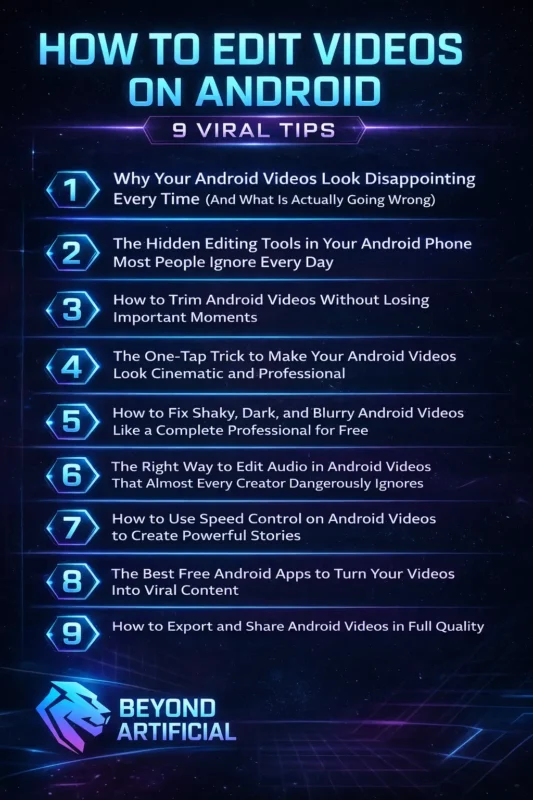
Keep learning to explore simple tips that will help you take full control of your editing. You will be able to turn everyday Android footage into scroll-stopping videos that people love to watch and share.
1. Why Your Android Videos Look Disappointing Every Time (And What Is Actually Going Wrong)
Your Android videos may look disappointing because of poor lighting, shaky hands, and no editing. Many people think their phone camera is the problem, but the real issue is that raw videos always need a few simple edits to look their best. Even a great Android camera can not fix a video that is not edited. Try to record your videos in natural daylight whenever possible. Good lighting alone can make your video look brighter and more beautiful.
After recording, open Google Photos, tap Edit, and slightly increase brightness, contrast, and saturation. These small changes can quickly make your video look clearer and more professional. Also, hold your phone with both hands and keep your elbows close to your body while recording. This helps reduce shakiness and makes your video smoother.
Remember, your Android isn’t the problem; you just need the right shooting and editing habits to make your videos look amazing.
2. The Hidden Editing Tools in Your Android Phone Most People Ignore Every Day
Your Android phone already has a powerful video editor, but many people do not know it exists. Google Photos comes pre-installed on most Android phones and includes simple editing tools you can use for free. You can trim videos, crop frames, rotate clips, fix colors, and add filters without downloading any extra apps. To use it, open any video in Google Photos and tap Edit at the bottom of the screen.
You will see easy tools to adjust brightness, contrast, and saturation. Even small color changes can make your video look brighter, clearer, and more professional. You can also use the crop and rotate tools to straighten your video and remove unwanted edges. A clean frame instantly makes your video look more polished. Instead of downloading many apps, start using the tools already on your phone. They are simple, free, and powerful enough to improve your videos quickly.
3. How to Trim Android Videos Without Losing Important Moments.
Trimming your Android video is one of the quickest and most satisfying edits you can make. It removes boring or awkward parts and keeps only the best moments. A well-trimmed video feels cleaner, more emotional, and much easier to watch. Many Android users make the mistake of tapping “Save” and accidentally replacing their original video. This can permanently overwrite the original memory. The good news is that Google Photos lets you trim your video safely.
To trim, open your video in Google Photos and tap Edit. Drag the white handles on the timeline to select the part you want to keep. When you are done, always tap “Save Copy” instead of “Save.” This creates a new trimmed version while keeping your original video safe. If you are using apps like CapCut or VN, use the undo button if you make a mistake, or exit without saving.
Always protect your original files. Trim with confidence, knowing your important memories are safe.
4. The One-Tap Trick to Make Your Android Videos Look Cinematic and Professional.
Your Android phone has a simple feature that can make your videos look more cinematic in just one tap. Many people wonder why other videos on social media look warm and professional, but often it’s just the right filter being used. You do not need expensive cameras or special skills to get that cinematic look. Open your video in Google Photos and tap Edit, then choose the filter option. You will see different filters that can change the mood and color of your video instantly.
Try each filter slowly and pick the one that matches your video best. Do not use filters at full strength because that can make your video look too edited. Lower the filter intensity to about 60–70% for a more natural and professional look. With the right filter and small adjustments, your Android videos can look more beautiful and cinematic in seconds.
5. How to Fix Shaky, Dark, and Blurry Android Videos Like a Complete Professional for Free
Shaky, dark, and blurry Android videos can feel disappointing, especially when the real moment was beautiful. Many people delete these videos too quickly, thinking they can not be fixed. But the truth is, your Android phone and a few free apps can easily improve them. You do not need expensive tools or professional skills. For shaky videos, open CapCut, import your clip, and use the stabilization feature. It smooths out camera shake and makes your video look steady.
For dark videos, open your clip in Google Photos, tap Edit, and increase brightness and highlights to make the video clearer and brighter. If your video looks blurry, use the Sharpness or Clarity tools in CapCut or Google Photos. Even a small increase can make your video look more focused and clean. Always try these simple fixes before deleting any video; many special memories just need a few edits to look great again.
6. The Right Way to Edit Audio in Android Videos That Almost Every Creator Dangerously Ignores
Many Android creators focus only on video quality and forget about sound. But bad audio can ruin a great video very quickly. Viewers may ignore shaky footage or low lighting, but if the sound is noisy or unclear, they will stop watching. Good audio makes your video feel more professional and emotional. To fix poor audio, open your video in CapCut and go to the Audio section. If the original sound is full of noise, you can mute it completely.
This instantly makes your video cleaner and easier to watch. If your video needs music, add a soft background track in CapCut or VN. Choose simple, royalty-free music that matches your video. Keep the music volume low, around 20–30%, especially if someone is speaking. The music should support the moment, not overpower it. Always pay attention to audio while editing. People may watch with their eyes, but they connect with your video through sound.
Clean and balanced audio makes your videos more enjoyable and memorable.
7. How to Use Speed Control on Android Videos to Create Powerful Stories
Speed control is a powerful tool on your Android phone that can change how your video feels. Many people do not use it, but it can make your videos more emotional and interesting. Slowing down special moments helps viewers feel the emotion, while speeding up long or boring parts keeps the video exciting. To slow down a video, open CapCut, tap your clip, then select Speed.
You can reduce the speed or use curve speed for smooth slow motion. This works great for emotional moments like smiles, nature, or special memories. To speed up long clips, increase the speed to 2x or 4x in CapCut or VN. This makes your video faster and more fun to watch. Always choose the speed based on the feeling you want to show, slow for emotional moments and fast for energetic scenes.
8. The Best Free Android Apps to Turn Your Videos Into Viral Content.
Your Android phone already has good editing tools, but free apps can take your videos to a whole new level. These apps give you features like smooth transitions, cool effects, auto-captions, multi-clip editing, and better color control, things that Google Photos cannot fully provide. The best part is that you don’t need to pay anything to use them. CapCut is one of the most popular free editing apps.
It offers auto captions, trendy effects, speed controls, background removal, and one-tap enhancements. It can quickly turn simple clips into eye-catching videos. VN Video Editor is another powerful free app. It gives you a professional-style timeline, no watermark on exports, and advanced color tools that make your videos look more polished and cinematic. A smart way to edit is to start in Google Photos for basic fixes like trimming and brightness. Then move your clip into CapCut or VN for advanced edits.
Do not feel overwhelmed; these apps are beginner-friendly. With a little practice, you can create professional-looking videos right from your Android phone.
9. How to Export and Share Android Videos in Full Quality
It feels frustrating when you spend time editing an Android video and the quality looks bad after exporting. This usually happens because of wrong export settings or sharing through apps that reduce quality. The good news is you can keep your video clear and sharp by using the right steps. Always export your video in 1080p or 4K from apps like CapCut or VN. Choosing the highest resolution keeps your video looking clean and professional.
Before saving, check the export settings and select the best quality available. When sharing your video, upload it directly to Instagram, TikTok, or YouTube from your gallery. Avoid sending videos through WhatsApp or Telegram first because these apps compress and lower the quality. If you need to transfer your video to another device, use a USB cable or Google Drive to keep the original quality safe.
After all your hard work, make sure your final video stays clear and beautiful. The right export and sharing method keeps your videos looking their best every time.
FREQUENTLY ASKED QUESTIONS (FAQs)
How do I edit a video in the gallery?
Editing a video in your Android gallery is quick and easy. You do not need to download any extra apps to get started. Just open your gallery, select the video you want to edit, and tap the Edit or pencil icon. You can trim the clip, crop it, adjust colors, and add filters in just a few taps. If you want more editing options, open the same video in Google Photos and tap Edit. It gives you extra tools to improve colors, lighting, and overall quality, helping you turn simple footage into a video worth sharing
How to remove unwanted items in videos?
Removing unwanted things from your Android videos is now very easy. You do not need expensive apps or special skills anymore. Just download CapCut for free from the Play Store and use its object remover or background tools to delete unwanted people or messy backgrounds in a few taps. If distractions appear on the edges of your video, open it in Google Photos or CapCut and use the crop tool. Adjust the frame to remove anything you don’t want and make your video look clean and focused.
What is the easiest way to trim videos?
Trimming videos on Android is very simple and doesn’t need any paid apps. Open your video in Google Photos, tap Edit, then drag the white handles on the timeline to choose the part you want to keep. When you’re done, tap Save Copy to create the trimmed version. If you want an even easier option, open your video in CapCut. Tap the clip on the timeline, choose Split to cut at the exact spot you want, and delete the unwanted parts with one tap.
What app can I use to remove stuff from a video?
CapCut is one of the best free apps for removing unwanted things from your Android videos. It has simple AI tools that are easy to use, even for beginners. Just open CapCut, import your video, go to Effects or Retouch, and use the object remover to delete unwanted people or distractions in a few taps. If the unwanted object is near the edge of your video, you can also use YouCut or VN Video Editor. These apps have simple crop and reframe tools that let you adjust the frame and remove distractions without affecting the main part of your video.
What is the easiest video editing software?
The easiest video editing app for Android is CapCut. It gives you powerful editing tools but keeps everything simple and easy to understand. Even beginners can quickly trim clips, adjust colors, add music, and use effects without feeling confused. If you want something even simpler, use the built-in editor in Google Photos. It lets you trim, crop, and improve your videos in just a few taps, with no complicated menus or settings.
How to edit videos on Android for free
Editing videos on Android for free is easier than most people think. You do not need expensive apps to make your videos look amazing. If your raw footage looks dull or confusing, do not worry; a few simple tools can turn it into something clear, emotional, and professional.
Here’s how to edit videos on Android for free:
1. Open Google Photos and tap Edit to trim, crop, and fix colors quickly
2. Download CapCut for free to add transitions, captions, effects, and speed control
3. Use VN Video Editor for multi-clip editing and clean videos with no watermark
4. Always export in 1080p or higher to keep your video quality sharp
5. Keep your original videos safe before editing so you never lose important memories
With these free tools, your Android phone can easily create beautiful, professional videos. Once you start using them, editing will feel simple and fun.