
 YouTube Automation
How Much RAM for Video Editing 4K – 9 Powerful Facts(Blog#:17)

If your 4K videos keep buffering, freezing, or crashing while editing, you already know why understanding how much RAM for Video Editing 4K is so important. Knowing how much RAM for Video editing 4K is not just a technical detail; it’s the difference between smooth editing and constant frustration. When you finally understand it, your timeline runs smoothly, previews load faster, and your workflow feels powerful and under control.
Many editors struggle with lag and crashes simply because they do not have the right RAM setup. These 9 powerful facts will help you fix that and build a system that handles 4K editing with confidence and speed.
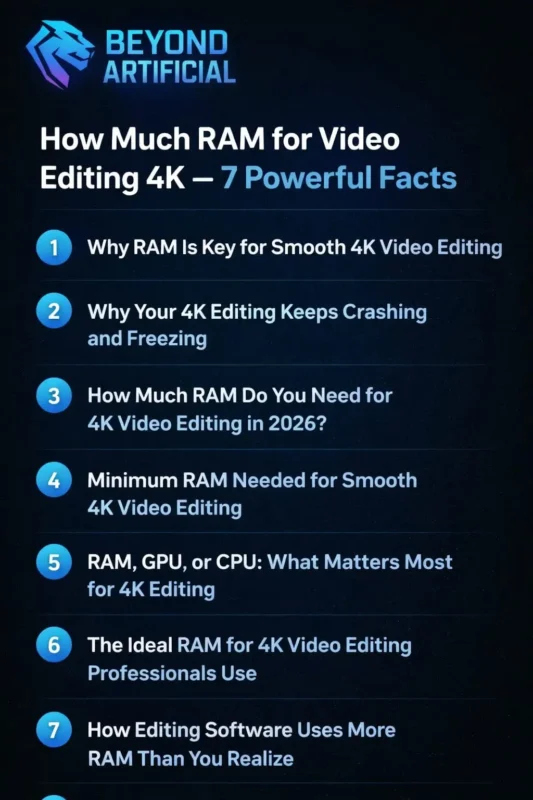
Your laggy editing days are over. Upgrade your RAM, apply these powerful facts, and enjoy smooth, fast 4K editing without crashes. One smart upgrade can change everything.
1. Why RAM Is Key for Smooth 4K Video Editing
If your timeline stutters, previews freeze, or your editing software crashes during your best creative moments, the main culprit is almost always your RAM. RAM is your computer’s short-term memory, and during 4K editing, it works harder than any other component. It has to handle large video files, real-time previews, effects, and software processes all at once. Without enough RAM, your system borrows space from your slower hard drive, making your editing slow, laggy, and frustrating. Simple cuts start to feel like a battle.
Here’s a tip: open Task Manager (or Activity Monitor) while editing to check RAM usage. If it’s above 80%, your system is struggling, and an upgrade will make a big difference. Another tip: close unnecessary apps like browsers, music players, or chat programs before editing, freeing just 2–4 GB of RAM can noticeably improve performance.
Also, make sure your RAM runs in dual-channel mode by installing sticks in the correct paired slots. This can boost memory speed by up to 50% and make 4K playback much smoother without extra cost. Once your system has enough RAM, your timeline will respond instantly, previews will play flawlessly, and your creative flow will be completely uninterrupted. RAM is not just a technical spec; it’s the key to the smooth 4K editing experience you deserve.
2. Why Your 4K Editing Keeps Crashing and Freezing
If your software crashes or your screen freezes while editing 4K footage, you are not alone, and it’s not your fault. The biggest reason for crashes and freezes is insufficient RAM. When your system runs out of memory, it starts using your slower storage drive, becomes overloaded, and a crash becomes almost inevitable. Other hidden causes include outdated software, corrupted media cache files, overheating, and incompatible GPU drivers.
Here are some tips to prevent crashes:
Clear your media cache regularly in Adobe Premiere Pro or DaVinci Resolve. Corrupted cache files are a common and easy-to-fix cause of crashes.
Save your project manually every 10 minutes and keep auto-save on (every 5 minutes) to avoid losing hours of work.
Monitor CPU and RAM temperatures with a free tool like HWMonitor. Overheating is a major but often overlooked reason for random crashes.
Once you find the real causes and apply these fixes, your 4K editing sessions will run smoothly, stably, and crash-free, giving you back your creative flow and making editing enjoyable again.
3. How Much RAM Do You Need for 4K Video Editing in 2026?
If you have ever googled this question late at night while your editing software kept crashing, confused by technical jargon, you deserve a simple and clear answer. In 2026, 16 GB of RAM is the minimum for very basic 4K projects. But the real sweet spot for smooth, responsive editing is 32 GB. For complex multicam timelines, heavy effects, color grading, or running multiple apps, 64 GB is becoming the new standard for serious creators.
Here are some practical tips:
Buy slightly more RAM than you need. Updates in software like Adobe Premiere Pro and DaVinci Resolve often require more memory over time.
Check motherboard compatibility before upgrading, so you do not waste money on unnecessary upgrades.
Use RAM in matched pairs for dual-channel performance. Two 16 GB sticks perform better than a single 32 GB stick.
When you install the right amount of RAM for your workflow, your editing will feel fast, stable, and smooth. Choosing the right RAM is not just technical — it’s an important creative investment in yourself and your work.
4. Minimum RAM Needed for Smooth 4K Video Editing
If you are starting 4K editing on a tight budget, knowing the minimum RAM you can work with is crucial. The honest answer: 16 GB is the bare minimum. It can handle simple single-camera 4K projects with minimal effects, but you will quickly notice limitations as your projects get more complex. On 16 GB, your software may feel slow, previews may drop frames, renders will take longer, and multitasking can easily cause crashes, wasting your time and creativity.
Here are some tips to make 16 GB work:
Use proxy files instead of full-resolution 4K footage to reduce RAM load.
Dedicate your system to editing: restart your computer, close all background apps, and disable unnecessary startup programs.
Set a manual memory limit in your editing software to prevent it from using all RAM and leaving none for your system.
Treat 16 GB as a starting point, not a permanent setup. Start saving for 32 GB, and use these tips to get the most performance from your current RAM. You will move from frustration to smooth, controlled editing.
5. RAM, GPU, or CPU: What Matters Most for 4K Editing
If you have ever felt confused about whether to upgrade your RAM, GPU, or CPU, you are not alone. Each component plays a different but important role in 4K editing:
CPU handles processing and calculations.
GPU accelerates real-time playback and rendering.
RAM keeps all your footage, effects, and software data flowing smoothly.
In most cases, RAM is the first and most impactful upgrade. Even the best CPU or GPU can not fix a system that runs out of memory.
Tips for upgrading smartly:
Monitor performance: Check RAM, CPU, and GPU usage while editing your toughest projects. The component hitting 90–100% is your real bottleneck.
Enable GPU acceleration: In Premiere Pro or DaVinci Resolve, this can improve playback and export times without new hardware.
Balance your upgrades: A system with 32 GB RAM, a solid mid-range GPU, and a modern multi-core CPU performs better than one with just one powerful component.
Once you understand how RAM, GPU, and CPU each affect 4K editing, you can make upgrades based on real data. You will move from frustration to confidence, building a system that truly supports your creative work.
6. The Ideal RAM for 4K Video Editing Professionals Use
Professional editors work smoothly on even the most complex 4K projects, and it’s not just skill; it’s the RAM in their systems. In 2026, the ideal RAM for serious 4K editors is 64 GB. This allows multicam editing, heavy color grading, motion graphics, layered effects, and running multiple apps simultaneously, all without stutters, freezes, or slowdowns. For the most demanding projects, like feature films, high-end commercials, 3D compositing, or 8K workflows, 128 GB is becoming necessary to maintain flawless performance.
Tips for professionals:
Upgrade from 32 GB to 64 GB for the biggest improvement in smoothness, creative freedom, and stress-free editing.
Use high-speed RAM (3200 MHz or higher) to move data faster and make your timeline ultra-responsive.
Future-proof your setup: choose a motherboard that supports even more RAM, as 8K, HDR, and complex workflows are becoming the new standard.
Once you have 64 GB or more of fast, properly configured RAM, your 4K timeline will play back perfectly in real-time. You will feel your system is finally as powerful and reliable as your creative vision.
7. How Editing Software Uses More RAM Than You Realize
If you have ever thought your RAM was enough for a 4K project, but your system still slowed, froze, or crashed, the truth is your editing software was secretly using far more memory than you realized. Programs like Adobe Premiere Pro, DaVinci Resolve, and Final Cut Pro are very memory-hungry. They load footage thumbnails, real-time previews, effect calculations, undo history, audio waveforms, and run background processes, all at the same time. On a complex 4K timeline, your software can easily use 20–30 GB of RAM before you even add color grades or effects.
Every plugin, nested sequence, node in a color grade, or motion graphics template increases RAM use, often catching editors off guard.
Tips to manage RAM effectively:
Set a maximum RAM allocation in your software preferences, leaving 4–6 GB for your operating system.
Regularly purge media cache and preview files, which can silently take up huge amounts of RAM.
Render and replace complex effect-heavy sections of your timeline to reduce active RAM load during playback.
When you manage your software’s RAM, clear cache regularly, and handle timeline complexity wisely, your editing will feel dramatically faster and more stable, without spending a single dollar on new hardware.
8. How Multitasking While Editing 4K Silently Kills Your RAM Performance
If you keep multiple browser tabs open, have Spotify playing, run Photoshop, check emails, or use other apps while editing 4K, your RAM is quietly being stolen. Every app competes for the same memory your editing software needs, and even one extra program can push your system toward crashes and freezes. Browsers like Chrome or Edge are especially memory-hungry, sometimes using 3–6 GB of RAM on their own.
Tips to protect your RAM while editing:
Close all non-essential apps before opening your editing software. This can free 6–10 GB instantly.
Disable unnecessary startup apps so background programs don’t consume RAM from the moment your computer turns on.
Use Task Manager or Activity Monitor to monitor RAM usage in real time and close memory-hogging apps immediately.
Treat your editing sessions as dedicated, distraction-free RAM zones, and your 4K editing will be smoother, faster, and more stable, almost like having a RAM upgrade without spending a penny.
9. DDR4 vs DDR5 RAM: Which Is Better for 4K Editing?
Choosing between DDR4 and DDR5 RAM can feel confusing, especially when you are upgrading your 4K editing setup. DDR4 is proven, widely compatible, and affordable. A well-configured 32 or 64 GB DDR4 setup can handle most professional 4K projects smoothly and reliably. DDR5 is newer, faster, and more future-proof. It offers higher bandwidth, better efficiency, and improved performance for complex multicam edits, heavy effects, and demanding professional workflows.
Tips for smart upgrading:
Building a new system? Choose DDR5 for future-proofing; it’s worth the small extra cost.
Already on DDR4? Do not rush to DDR5. Upgrading from 32 GB to 64 GB DDR4 often gives bigger real-world performance gains than switching to a small DDR5 kit.
Always use matched RAM kits from the same manufacturer and batch to avoid instability, crashes, or freezes.
Focus on getting the right amount of fast, compatible RAM for your workflow rather than stressing over DDR4 vs DDR5. This way, your 4K editing performance will improve immediately and reliably.
FREQUENTLY ASKED QUESTIONS (FAQs)
Is 32GB RAM good for 4K video editing?
Yes! 32GB RAM is the sweet spot for smooth and responsive 4K editing. It handles complex timelines, multiple apps, and effects without freezing or crashing. If you want a setup that works well today and is ready for bigger projects tomorrow, 32GB is the smartest and most impactful RAM upgrade you can make.
How much RAM is recommended for 4K?
For smooth and stress-free 4K editing, 32GB RAM is the recommended amount. It gives real-time playback, faster renders, stable multitasking, and enough memory for complex projects. If you want to future-proof your system for the most demanding 4K workflows, 64GB RAM is the professional upgrade that keeps your editing fast, smooth, and hassle-free for years.
How many GB is a 2-hour movie in 4K?
A 2-hour 4K movie can be 50–100GB or more, depending on the codec, bitrate, and compression. That’s a huge amount of data, so your RAM and storage need to handle it smoothly. For editing full-length 4K projects, at least 32GB RAM and fast NVMe storage are recommended. This ensures your system can load, process, and manipulate the footage in real time without freezing, crashing, or slowing down your creative workflow.
How many hours of 4K video can 256 GB hold?
At standard 4K settings, 256GB can store around 3–6 hours of footage, depending on your camera, codec, and quality. That might sound like plenty, but professional projects with multiple camera angles, raw files, and backups quickly eat through that space
What happens if you play a 4K movie on a 1080p TV?
When you play a 4K movie on a 1080p TV, the TV automatically downscales the video to 1080p. The picture will still look good, but you won’t see the full detail, sharpness, or depth that 4K was meant to deliver. To experience 4K at its best, especially for editing, you need a true 4K monitor or TV and enough RAM in your system. This setup unlocks the full clarity, richness, and immersive detail of your 4K content.
How much RAM for video editing 4k laptop
If you have tried editing 4K videos on a laptop and felt it freeze, stutter, or crawl, you are not alone, and the solution is simpler than you think. Many laptops do not have enough RAM for 4K editing, which causes crashes, dropped frames, and wasted time. Once you know the right amount of RAM for your 4K laptop, one smart upgrade can turn slow, frustrating editing into a smooth, fast, and enjoyable workflow.
Here is what the right RAM will do for your laptop editing:
Stop freezes and crashes that waste your time and break your flow
Smooth 4K playback with instant timeline scrubbing and flawless previews
Faster renders and exports, so you spend more time creating
Safe multitasking between editing software, browser, and other apps
Future-proof your laptop to handle growing 4K editing demands