
 YouTube Automation
How Can You Edit Videos On Windows Media Player-9 Best Tips(Blog#:20)

If you have ever stared at your video files, wondering How can you edit videos on Windows Media Player, you are not alone. Many people feel frustrated because they do not know what this free tool can really do, and they end up wasting time and energy. Windows Media Player is already on your computer and looks like the perfect quick solution, but most users underuse it and miss simple tricks that can make editing faster, cleaner, and easier.
These 9 best tips will walk you through everything step by step, showing you how to trim, cut, organize, and polish your videos. By the end, you will edit with confidence, save time, and turn your raw footage into professional-looking results, all using software you already have.
Keep reading and stop struggling with basic edits, master Windows Media Player today, and make your videos shine.
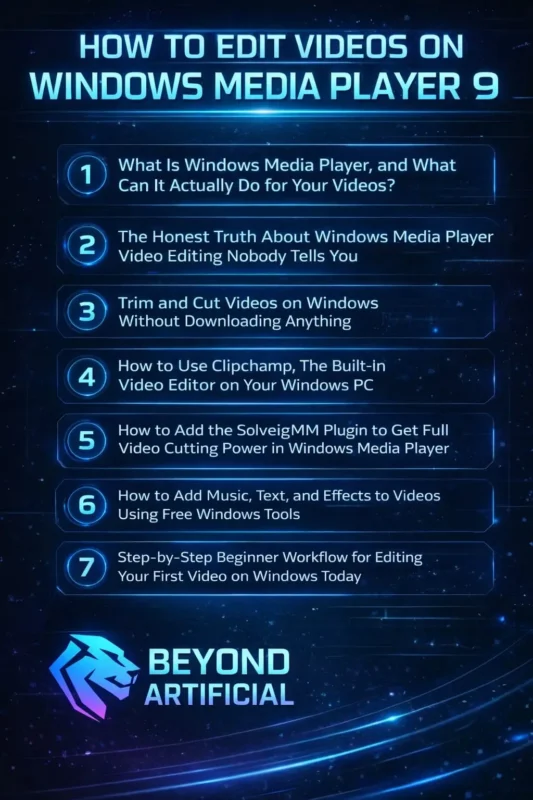
1. What Is Windows Media Player, and What Can It Actually Do for Your Videos?
Windows Media Player is Microsoft’s free, built-in tool that has been on millions of Windows computers for years, quietly playing your videos, music, and DVDs without costing you a dime. Most people only think of it as a basic media player, but it actually connects to powerful built-in Windows editing tools that let you trim, cut, enhance, and edit videos, all without downloading extra software.
Understanding what Windows Media Player can do for your videos is key. It saves you from hours of trial and error and points you directly to the right built-in tools that actually work. Start by exploring the three-dot menu inside Windows Media Player; it gives direct access to Clipchamp, Microsoft’s surprisingly powerful video editor that many users never even notice. Combine Windows Media Player, Clipchamp, and the Photos app to create a free, fully capable video editing setup.
Together, these tools handle most everyday editing tasks with ease. Do not ignore or uninstall Windows Media Player just because it looks simple or outdated; it’s your gateway to a world of free, powerful video editing tools already on your computer.
Once you understand what Windows Media Player connects you to, you will feel a wave of relief. The solution you have been searching for has been sitting on your PC all along, ready to use at zero cost.
2. The Honest Truth About Windows Media Player Video Editing Nobody Tells You
Here’s the truth most people do not realize: Windows Media Player was never designed as a video editor. It’s mainly a media playback tool, and understanding this can save you hours of frustration trying to force it to do something it wasn’t built for. The tricky part is that Microsoft puts it front and center on every Windows computer, without clearly showing that real video editing power comes from connected tools, not Windows Media Player itself.
The good news? Windows already includes powerful free tools like Clipchamp and the Photos app, so you already have a full, zero-cost editing setup without even knowing it. Stop blaming yourself if editing in Windows Media Player feels confusing; it’s not about your skills. The problem is that most users never learn about the full ecosystem of built-in editing tools. Once you understand this, you can shift your focus to Clipchamp and the Photos app, which let you trim, cut, add text, combine clips, and create polished videos with ease.
Do not waste time searching for Windows Media Player hacks or features that don’t exist. Your energy is far better spent learning the real free tools Microsoft already gave you. Once this clicks, your frustration turns into excitement. The perfect, free video editing solution has been sitting on your computer all along, just waiting for you to discover it.
3. Trim and Cut Videos on Windows Without Downloading Anything
You can trim and cut videos on Windows completely for free, right now, without downloading any apps or paying for software. Microsoft already installed two powerful tools on your computer that can do the job: the Photos app for quick, simple trims and Clipchamp for more precise, professional-level editing. The best part? The solution you have been searching for online has been sitting quietly on your computer this whole time.
Use the Photos app for fast edits, just right-click any video, open it with Photos, and trim it down in under two minutes, no technical skills needed. Use Clipchamp when you need more control: split clips, remove unwanted parts, and rearrange footage easily on its clean timeline interface. Always keep a backup of your original video so you never lose important footage.
Once you trim your first video using these free tools, you will feel the rush of confidence that comes from realizing you do not need expensive software or complicated downloads to edit like a pro.
4. How to Use Clipchamp: The Built-In Video Editor on Your Windows PC
Clipchamp is Microsoft’s free, built-in video editor that comes with every Windows 11 computer. Once you discover it, you will wonder how you ever spent so much time looking for other editing tools; this powerful editor was already on your PC. It gives you a clean, modern, timeline-based editing experience with features like trimming, splitting, combining clips, adding text, inserting music, applying filters, and even screen recording.
The beginner-friendly interface makes professional-looking video editing achievable for anyone. What makes Clipchamp special is that it’s designed for everyday Windows users who want real editing power without a steep learning curve. You can open it for the first time and start producing polished videos within minutes. Always access Clipchamp through the Windows Media Player three-dot menu or by searching for it in the Start menu, knowing both makes your workflow smooth and fast.
Use text overlays and titles to add captions and headings, because clear text instantly makes your videos more engaging. Never skip the export quality settings; always select the highest resolution, so your final video looks sharp and professional on any platform. Once Clipchamp becomes your go-to editor, frustration disappears, confidence grows, and you finally enjoy editing great videos, completely free, on the computer you already own.
5. How to Add the SolveigMM Plugin to Get Full Video Cutting Power in Windows Media Player.
If you have ever wanted to cut and trim videos directly in Windows Media Player without switching between apps, the SolveigMM WMP Trimmer Plugin is the perfect solution. This small but powerful tool plugs right into Windows Media Player, giving you precise, professional-grade cutting power while keeping the interface you already know and love. The plugin adds a trimming toolbar inside Windows Media Player, letting you set exact start and end points, remove unwanted sections, and save your video without losing quality.
For longtime WMP users, it’s incredibly satisfying. Finally, the tool you trust becomes a real video editor that respects your time, footage quality, and need for simplicity. Always download SolveigMM only from the official website to avoid security risks or harmful software. Use the frame-accurate trimming feature to make precise cuts; this is what separates amateur footage from polished, professional videos.
Make sure you download the version that matches your Windows Media Player, because a mismatched version will not work and will cause unnecessary frustration. The moment SolveigMM installs and the trimming toolbar appears, you will feel a surge of excitement. You have just unlocked a whole new level of editing control that most Windows users did not even know existed.
6. How to Add Music, Text, and Effects to Videos Using Free Windows Tools.
You do not need expensive software or complicated downloads to add music, text, and effects to your videos. Windows already gives you free, powerful tools that make it easy to create polished, professional-looking videos right from your own computer. Clipchamp and the Photos app work together as a perfect free creative duo. They let you add background music, text overlays, visual filters, and smooth transitions to turn plain, raw footage into engaging, finished videos.
The exciting part is that these tools are already on your computer; you just need to know how to use them. Always choose music that fits the mood of your video. The right music creates emotion, builds connection, and keeps viewers watching from start to finish. Use Clipchamp’s text overlay feature for captions, titles, or key messages. Clear, well-placed text improves understanding, boosts watch time, and makes your video look professional.
Never overload your video with too many effects or text elements. Cluttered visuals confuse your audience and make your content feel messy. Once you start adding music, text, and effects with these free Windows tools, you’ll feel that creative spark, realizing you have everything you need to make videos you’re proud of, completely free, right now.
7. Step-by-Step Beginner Workflow for Editing Your First Video on Windows Today
Editing your first video on Windows can feel scary, confusing, and even impossible at times, but imagine the pure thrill when you realize you can turn your raw footage into a polished, scroll-stopping video all on your own, for free. Start by importing your clips into Clipchamp or Photos, and do not worry about perfection; just focus on the moments that truly matter, because every second counts when you’re telling your story.
Next, add text overlays or captions to guide your viewers, highlight key points, and make your message impossible to miss, giving your video that professional, confident feel. Tip: Pick bold, clear fonts and place them naturally so your audience’s eyes are drawn exactly where you want. Bring your video to life by adding background music that fits the mood and makes your viewers feel connected to every moment. It’s amazing how much emotion a simple song can add.
Tip: always keep a backup of your original files before editing, so you can experiment freely without fear of losing anything. Finally, export in the highest quality and watch your creation come alive on screen. That rush of pride, excitement, and confidence will make you realize you’re not just a beginner anymore, you’re a creator ready to wow the world.
FREQUENTLY ASKED QUESTINS(FAQS)
Can you edit videos on Windows Media Player?
Not directly, Windows Media Player is mainly for playing videos, not full editing. But you can trim, cut, and enhance your clips using free built-in tools like Clipchamp or the Photos app that work perfectly with it. With these tools, your videos can look polished and professional without any extra cost or complicated software.
Does Windows have built-in video editing?
Yes, Windows actually comes with free tools you probably already have on your computer. You can use Clipchamp and the Photos app to trim, cut, add text, music, and effects, giving your videos a polished, professional look without downloading anything extra.
Is there a way to trim videos on Windows?
Yes, you can trim videos quickly without installing any extra software. Use the Photos app for simple trims or Clipchamp for more precise editing, and cut your clips exactly how you want in just a few clicks.
How do I cut part of a video?
Cutting parts of a video is easier than you think, even on Windows! Simply use Clipchamp or the Photos app to select the section you want to remove, and with a few clicks, your video will be trimmed perfectly and ready to share.
Is there a 100% free video editor?
Yes, you do not need to spend a single dollar to edit your videos like a pro. Clipchamp and the Photos app on Windows are completely free, letting you trim, cut, add text, music, and effects without any hidden costs.
How can you edit videos Windows Media Player on Windows 7
Feeling stuck staring at your raw videos on Windows 7, wishing you could cut, trim, or add effects without wasting hours or spending money? You are not alone; so many creators hit the same wall, frustrated that Windows Media Player seems too simple to actually help.
Here’s the exciting part: you already have powerful tools at your fingertips, and with a few smart tricks, you can finally turn your ordinary footage into polished, scroll-stopping videos. Say goodbye to confusion and wasted time, and hello to simple, free, and effective editing that actually works.
Here’s how to get started:
Trim and cut videos fast using built-in Windows tools connected to Media Player.
Add text, music, and effects without downloading extra software.
Use Clipchamp or Photos app for precise, professional-quality edits that make your videos shine.
.