
 YouTube Automation
Best AI tools for video editing in 2026 – 9 powerful tools(Blog#:68)

You finally finish recording your video, and then comes the hardest part: editing. This is where most creators get stuck. You spend hours cutting clips, fixing audio, adding captions, adjusting colors, and before you know it, all your time and energy are gone. The worst part? Your creative ideas, the ones that actually matter, get buried under all this technical work. That’s exactly why the best AI tools for video editing in 2026 exist.
Instead of doing everything manually, these tools handle the heavy work for you. They can trim your footage, generate captions, improve audio, and even enhance visuals, all in minutes, not hours. This means you can focus on what truly matters: your content, your message, and your creativity.
These 9 powerful AI tools do not just make editing faster; they completely change the way you create. You can publish more consistently, feel less overwhelmed, and actually start enjoying the process again instead of dreading it.
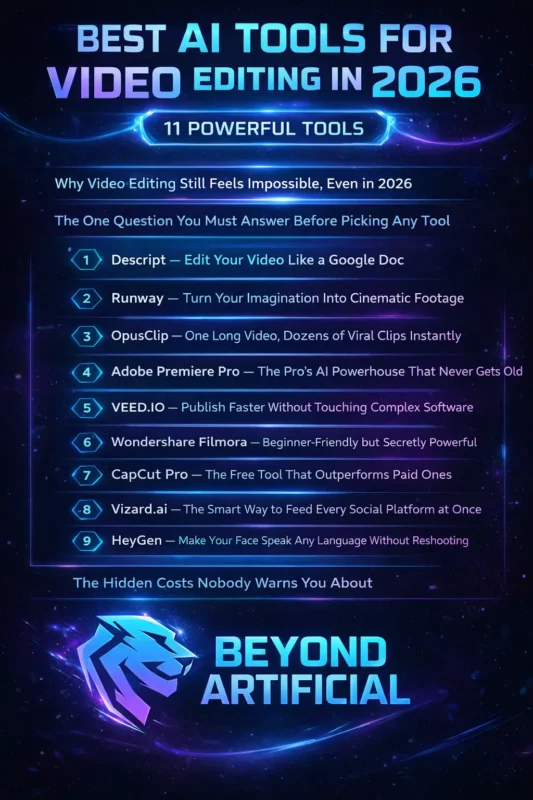
If editing has ever felt like a burden, this is where things finally start to get easier. Before choosing tools, understanding a proper AI video editing workflow step by step can completely change your results.”
Why Video Editing Still Feels Impossible, Even in 2026.
Video editing in 2026 still frustrates many creators, not because they lack talent, but because the tools are not built for ease. You start with a great idea, record your video, feel excited… and then the editing timeline eats up hours. Even short videos take too long, software can crash, and you end up doing everything yourself, while your creative energy slowly fades.
The real problem is not skill; it is decision fatigue. Every cut, transition, and color choice drains your mental energy, leaving less focus for your actual content. Simple Tip: Before editing, set just 3 goals:
- One visual fix
- One audio improvement
- One structure change
This keeps you focused and avoids overwhelm.
The good news? AI tools in 2026 have made editing much easier. You no longer need months of practice. Smart Strategy: Use 2 simple AI tools; One for editing or one for captions
You will finish faster, feel less stressed, and enjoy creating again.
The One Question You Must Answer Before Picking Any Tool.
Most people choose an AI video editing tool the wrong way. They search for the best tool, click the first result, and after a few weeks… they are frustrated. Why? Because that tool was never built for their specific problem. Before you waste time or money, ask yourself one simple question: Where does my editing process actually break? Because the right tool depends on your needs. A podcast editor needs something very different from a social media creator making 30 clips a week.
The truth is, AI tools do not remove editing; they just change where your effort goes. So the best tool isn’t the one with the most features, but the one that removes your biggest headache. Simple Tip: Think about your last 3 editing sessions and find the exact moment you got stuck, which tells you what kind of tool you really need. Also, do not get impressed by fancy demos. Your budget, your workflow, and your content style matter more than marketing.
Another smart Tip: Always test the tool using your own footage during a free trial. A tool that looks amazing in demos can feel slow and confusing with real content. Choose based on your workflow, not hype.
Now talk about the tools:
1. Descript: Edit Your Video Like a Google Doc.
Descript is different from most video editors; it removes the complicated timeline and lets you edit your video just by editing text. Instead of cutting clips manually, you simply delete words from the transcript… and that part disappears from the video instantly. No dragging, no confusing tools, just simple, human-friendly editing. That is why beginners love it. It removes what many people struggle with most: timeline confusion.
One powerful feature many people miss is Scenes, which automatically splits your video into sections based on topic changes. This is perfect if you create long videos, interviews, or educational content. Simple Tip: Use the built-in AI assistant (“Underlord”). Just type what you want, like:
- remove silences
- make it shorter
- improve flow
It will apply changes to your whole video in seconds. Another smart feature: Descript removes filler words (like um or uh ) from both text and audio, but only when it sounds natural, so your video does not feel robotic. Important Tip: Be careful with AI credits on lower plans. If you edit a lot of videos, your cost can increase quickly, so always test your real workflow during the free trial. In simple words: Descript is perfect if you want easy, fast editing without technical stress.
2. Runway: Turn Your Imagination Into Cinematic Footage.
Runway makes something incredibly powerful feel simple; it lets you create cinematic, realistic videos just by typing a sentence. No camera, no crew, no setup. Just write what you want, and it turns into a video. One of its biggest strengths is character consistency. You can use one reference image, and your character will look the same across different scenes, lighting, and angles, something that used to take a full VFX team.
New updates have made it even stronger: You can generate longer clips (up to about 1 minute), create multiple shots, and even add audio directly. But there are a few things you should know. Runway often adds slow motion by default, even if you do not ask for it. Also, small details like hands or faces can look strange if the clips are too long. Simple Tip: Keep your shots short, simple, and with less movement for the best results.
Pro Tip (Prompt Formula): Use this structure when writing prompts: Camera + Subject + Action + Environment + Lighting + Lens + Mood. This helps your video look more realistic and less “AI-like.” Another strong point: Runway handles motion well; things like water, hair, and falling objects move naturally, making scenes feel more real.
Smart Tip: Use Gen-4 Turbo for testing (cheaper), and save full-quality Gen-4 for final videos. Your credits will run out fast. In simple words, Runway is perfect if you want cinematic AI videos without expensive production.
3. OpusClip: One Long Video, Dozens of Viral Clips Instantly.
OpusClip turns one long video into multiple short clips automatically. Instead of spending hours finding the best moments, it scans your video and gives you 10–25 ready-to-post clips in minutes. What makes it powerful is that it does not just read subtitles, it also looks at:
- facial expressions
- emotions
- visuals
- audio tone
So it works well even for vlogs, gaming, or sports content where there is not much talking. It also gives a Virality Score to help you pick clips that might perform better.
But remember, it is just a guide, not a guarantee. Sometimes low-score clips still go viral. Smart Tip: Do not upload a full 60-minute video. Split it into 10–15-minute parts for better results and lower credit usage. Also, do not expect perfection. You will still need to review and adjust some clips; that is normal.
Important Tip: Avoid relying on auto-posting features. Download your clips and upload them yourself for better control. One more thing: If your subscription ends, your projects and credits may disappear, so always download your clips before that. In simple words, OpusClip is perfect if you want fast, viral-ready short clips from long videos without manual work.
4. Adobe Premiere Pro: The Pro’s AI Powerhouse That Never Gets Old.
Adobe Premiere Pro (2026) is becoming much easier to use, not just for professionals, but for everyday creators too. Adobe has added smarter AI features that save time and reduce complex work. One of the biggest updates is the AI Object Mask tool. You can click on a person or object, and Premiere will automatically track it through the whole video. This helps you easily:
- blur faces
- Adjust the lighting on a subject
- apply effects to specific areas
And the best part? This all runs on your computer, not in the cloud, so your footage stays private. Another powerful upgrade is the connection with Adobe Firefly. You can create AI visuals and bring them directly into your video without switching apps. Simple Tip: Use Media Intelligence search. It helps you quickly find clips using visuals, words, or metadata, perfect for big projects.
But here is the truth: AI does not fix everything. Editing still takes time, especially organizing footage and making the first rough cut. Smart Tip: Combine Premiere with other tools for searching and organizing clips to save even more time. Pro Tip: Use the new timeline export system when working with others; it makes sharing projects with tools like DaVinci Resolve much easier. In simple words: Premiere Pro is now faster, smarter, and less complicated, but still best for creators who want full control over their edits.
5. VEED.IO: Publish Faster Without Touching Complex Software.
VEED.IO makes video editing feel easy, even if you hate editing. It runs completely in your browser, so there is no software to install and no complicated timeline to deal with. You can create professional-looking videos quickly, even as a beginner. Some features are especially helpful for solo creators: Eye Contact Corrector → makes it look like you are looking at the camera, even if you are reading a script. Clean Audio → removes noise and improves your voice so it sounds more professional. VEED also lets you generate videos, edit, add captions, and publish, all in one place, without switching tools.
Smart Tip: Use the Brand Kit. It keeps your colors, fonts, and style consistent across all videos, making your content look more professional. Important Warning: Some advanced features (like avatars or voice cloning) are only in higher plans, so always check what is included before upgrading. Simple Tip: Test everything using your own content on the free plan. It has limits (watermark + lower quality), but it helps you decide if it is worth paying.
In simple words, VEED.IO is perfect if you want fast, simple video editing without technical stress. For creators and agencies working remotely, platforms like VEED are becoming part of the best collaborative video editing tools, making it easier to edit, review, and publish content together.”
6. Wondershare Filmora: Beginner-Friendly but Secretly Powerful.
Wondershare Filmora makes video editing simple, powerful, and actually enjoyable, especially for beginners. It gives you features that are usually found in expensive professional tools, but in a clean and easy interface. Some standout features:
- Pen Tool + Dual Timeline → draw animations and paths directly on your video (great for tutorials, maps, highlights)
- AI Copilot → analyzes your video and suggests edits automatically
- AI Video Extender → can add extra footage to fill gaps smoothly
- Audio Ducking → lowers background music automatically when someone speaks
Simple Tip: Turn on Proxy Editing when using 4K videos. This makes editing smooth and lag-free while keeping the final quality high. Important Warning: AI credits can expire without notice; always check your account before using them heavily. Also, the “lifetime” plan is limited to older versions, so you would not get future updates. The yearly plan usually gives better value. In simple words, Filmora is perfect if you want powerful features without the complexity of professional software.
7. CapCut Pro: The Free Tool That Outperforms Paid Ones.
CapCut is one of the most powerful free video editing tools, especially for social media creators. It gives you features that many tools charge for, like:
- AI avatars
- auto-captions
- text-to-speech
- background removal
- script-to-video
You can even describe your idea, and CapCut helps create a script and rough video in minutes. One underrated feature is motion tracking. You can attach text or effects to a moving object, and it will follow it automatically, making your videos look more professional. Simple Tip: Always choose “Free” filters/effects before editing. Some features look free at first, but require payment at export.
Important Warning: CapCut sometimes locks features at the end, which can ruin your workflow if you are not careful. Also, manage subscriptions through your App Store or Google Play, not inside the app, to avoid billing issues. Privacy Tip: CapCut processes videos through the cloud, so be careful when working with sensitive client content. In simple words, CapCut is perfect if you want powerful, free AI editing for fast social media content.
8. Vizard.ai: The Smart Way to Feed Every Social Platform at Once.
Vizard.ai solves a big problem for creators, turning long videos into short clips. Instead of spending hours editing, you can upload a long video (like 45–60 minutes), and it creates 20+ ready-to-post clips in minutes. It also does a lot automatically:
- adds captions
- resizes videos for different platforms
- Ranks clips based on performance potential
One powerful feature is speaker detection. If multiple people are talking, it automatically focuses on the active speaker, making your clips feel more dynamic.
- Another great feature:
- You can edit videos by editing text.
- Delete a sentence from the transcript, and it removes that part from the video, no timeline needed.
Simple Tip: You are charged based on the video length uploaded, not the clips created. So always calculate how much content you upload each month. Important Warning:
Vizard does not post or schedule your content. You will still need another tool to publish your videos. Best Use: Works best for podcasts, interviews, and talking videos. It is not great for videos without clear speech.
In simple words, Vizard is perfect if you want fast, automated short clips from long talking videos.
9. HeyGen: Make Your Face Speak Any Language Without Reshooting.
HeyGen makes something very difficult feel simple. It can take your video, translate it into 175+ languages, and match your lips to the new audio so naturally that it looks real. What used to need a full studio team can now be done in minutes. Its latest avatars look very realistic, with natural expressions and voice tone, so your videos feel human, not robotic. It also offers two useful modes:
- Speed Mode → faster results
- Precision Mode → better accuracy for important content
One powerful feature most people miss: You can create personalized videos at scale. For example, send 1,000 videos where each person hears their name and message, automatically. Another advanced feature is Live Avatar, which allows real-time conversations — useful for support, onboarding, or coaching. Important Tip (for best results):
- face the camera directly
- Use one speaker
- keep clear audio
- cut between sentences (not mid-word)
This helps lip-sync look natural. Important Warning: HeyGen now uses a credit system, so videos are not unlimited. Costs can increase quickly; always check your plan carefully. Smart Tip: Use Avatar Memory. It reuses your avatar’s movements and saves time + credits. In simple words: HeyGen is perfect if you want realistic AI videos, translations, and personalized content at scale.
If you are serious about growing your brand, understanding the importance of video editing in 2026 is no longer optional; it is your biggest competitive advantage.
The Hidden Costs Nobody Warns You About.
AI video tools can look cheap at first, but many creators later realize they have become much more expensive than expected. You might start with a $10–$15/month plan… and slowly end up paying $100+ every month without noticing. This happens because of hidden costs, extra tools, and credit systems. Here is what usually goes wrong:
Real costs are higher than advertised: Each video might seem cheap, but failed attempts, retries, and limits can make it 3–5x more expensive.
You lose credits even on failed videos: If a video does not generate properly or gets blocked, your credits are often still gone.
Tool stack gets bigger (and expensive): One tool does not do everything, so you end up paying for multiple tools:
- voice → another tool
- captions → another tool
- music → another tool
And suddenly your monthly cost keeps growing. “Unlimited plans” are not truly unlimited: They may slow down (queue delays), or unused credits expire every month.
Extra costs for teams and features. Adding team members, using APIs, exporting in 4K, or extra storage can all cost more.
Smart Tip: Before paying, test your real workflow in the free trial. Then estimate your usage and multiply the cost by at least 3–4x to see the true monthly expense. Important Tip: Always check licensing terms. Many free plans do not allow commercial use, which can cause problems if you are making money from your videos. In simple words: AI tools can save time, but if you are not careful, they can quietly become very expensive.
FREQUENTLY ASKED QUESTIONS (FAQs)
What is the best AI video editor for 2026?
If editing takes too long and your videos still do not look professional, you are not alone. Most creators face the same problem. The easiest way to fix this is by choosing the right tool for your content. CapCut is best for quick social media videos, Vizard.ai is ideal for turning long videos into multiple short clips, and Descript works perfectly for podcasts and talking-head videos through simple text editing.
One feature that stands out across all these tools is automatic captions; it saves hours of work and instantly makes your videos more engaging. In short, pick the right tool for your content and let AI handle the hard part.
How to spot AI videos in 2026?
In 2026, AI videos are so realistic that you can not rely on obvious mistakes anymore. The best way to spot them is to use your own knowledge, check small details in the scene (like equipment, actions, or logic), because AI often gets those wrong. If something feels “too perfect,” trust that instinct and verify it. For extra safety, use tools like Sightengine to analyze the video more deeply. In short, combine your judgment with AI detection tools to avoid being misled.
Which AI is better than ChatGPT?
Let is keep it simple, just because ChatGPT is the most popular doesn’t mean it’s always the best for everything. In 2026, different AI tools are better at different tasks:
- Claude → best for deep thinking, writing, and coding
- Perplexity AI → best for research with sources
- Microsoft Copilot → best for Office and daily work
- DeepSeek → strong performance at a lower cost
The smart strategy is not to stick with one AI. It is to use the right tool for the right job. In simple words: Do not be loyal to one AI, combine them to get better results faster and cheaper.
Is AI video monetized on YouTube?
YouTube does not ban AI videos, but it does require human input. If your content is fully auto-generated with no originality, it may not be monetized. The key is to add your own touch, like scripting, editing, or improving the flow. Also, if your video uses realistic AI visuals or voices, you must add the “Altered or Synthetic Content” label. In short, use AI as a tool, not a replacement, and stay transparent to stay safe.
Best AI tools for video editing in 2026, free
You have spent hours on a video… You are tired… and it still looks outdated. And deep down, you know it is not your creativity, it is your tools slowing you down. Most creators do not struggle with ideas. They struggle with editing. Hours go into cutting, trimming, and fixing audio, instead of actually creating something meaningful. But here is the shift most people still have not realized in 2026: Free AI video editing tools are now powerful enough to create professional content.
You do not need expensive software anymore. You do not need to learn complex timelines. And you definitely do not need five different apps just to finish one video. The creators growing fast right now are using simple AI tools that do everything in one place, faster, easier, and with far less stress. Here is what that looks like:
- No experience needed: tools like Kapwing let you edit videos by editing text, no technical skills required
- Fix bad audio instantly: AI can clean noise, remove filler words, and tighten your speech in seconds
- One video, multiple platforms: turn one recording into clips for TikTok, Reels, and YouTube Shorts automatically
- Free without limits: tools like CapCut offer high-quality exports without forcing a watermark
The process is no longer complicated. It is faster, simpler, and finally built for creators, not just editors.