
 YouTube Automation
How to Remove Gemini from Google -9 Powerful Fixes(Blog#:39)

Are you trying to figure out how to remove Gemini from Google because it keeps appearing where you never asked for it? You are not the only one. Many users feel confused or frustrated when an AI feature suddenly shows up in their favorite apps without clear control.
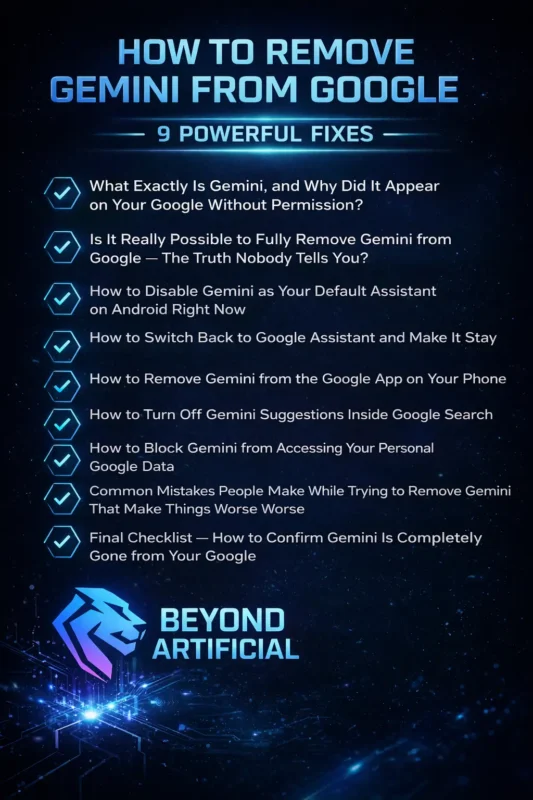
The good news is that once you learn how to remove Gemini from Google, you can take back control of your search and apps. In this guide, we will walk through 9 powerful fixes that can help you disable or avoid Gemini and make your Google experience feel normal again.
You deserve a Google experience that works the way you want. If Gemini keeps appearing on your phone and you would rather use Google the old way, there are simple ways to deal with it.
So keep reading to find practical fixes you can try step by step. Follow the methods that apply to your device, and you can quickly make your Google experience cleaner and easier to use again.
1. What Exactly Is Gemini, and Why Did It Appear on Your Google Without Permission?
Gemini is Google’s new AI assistant that is gradually replacing Google Assistant on many Android phones. Because of automatic updates, it can appear on your device without you actively installing it. This is why many users suddenly notice Gemini showing up in Google Search, Gmail, or when they press the assistant button on their phone. If you want to check whether Gemini is controlling your assistant, you can start by opening Settings → Apps → Default Apps → Digital Assistant on your phone and see which assistant is currently set as default.
You can also open the Google app settings and look for the Assistant or AI section, where Gemini options usually appear. Another useful step is checking your activity on https://myactivity.google.com, where Google stores interactions with its services. This helps you understand how AI features like Gemini are being used on your account.
If you are looking for step-by-step methods, our guide on how to remove Gemini from Google explains several practical fixes that can help you regain control of your Google experience.
2. Is It Really Possible to Fully Remove Gemini from Google? The Truth Nobody Tells You.
Here is something important to understand: you cannot completely delete Gemini from Google the same way you remove a normal app. Google has integrated it deeply into its system, which means it may still exist in the background. However, the good news is that you can disable it and stop it from affecting your daily experience. One of the first things you can try is going to Settings → Apps → Gemini on your phone and selecting Disable.
This helps stop the app from running in the background. After that, go to Settings → Apps → Default Apps and change your assistant back to Google Assistant if Gemini is currently set as the default. Another useful step is opening the Google Play Store, finding the Gemini app, and turning off Auto-Update. This prevents Google from automatically reinstalling or updating the app in the future.
Once you understand that the goal is to control or disable Gemini rather than completely delete it, the process becomes much easier. By following these steps, you can make Gemini far less visible and keep your phone working the way you prefer.
3. How to Disable Gemini as Your Default Assistant on Android Right Now
If Gemini keeps opening when you press the assistant or home button, it is probably set as your default digital assistant. This often happens after a system or app update, which can automatically switch the assistant on some Android phones. The good news is that you can change it back in less than a minute. Open Settings, then go to Apps, then Default Apps, then Digital Assistant App.
Here you will see which assistant is currently set as the default. If Gemini is selected, simply switch it to Google Assistant (or another assistant you prefer). It is also a good idea to check the Google app settings. Open the Google App → Settings → Google Assistant and make sure Google Assistant is enabled there as well. Keeping both settings consistent helps prevent Gemini from taking over again.
Finally, restart your phone after making the change. This allows your Android system to fully apply the new settings. After these steps, Gemini should stop appearing when you activate the assistant, and your phone will respond with the assistant you actually want to use.
4. How to Switch Back to Google Assistant and Make It Stay
For many years, Google Assistant was the default assistant on Android phones. After recent updates, some devices automatically switched to Gemini, which can confuse users who still prefer Google Assistant. The good news is that you can switch back easily. First, open the Google app, tap your profile picture, then go to Settings → Google Assistant and make sure Assistant is turned on.
Next, check your phone settings as well. Go to Settings → Apps → Default Apps → Digital Assistant App and confirm that Google Assistant is selected as the default assistant. This step is important because if Gemini is still set as the default, it may continue to appear. You can also test the change by long-pressing the home button or assistant button to see which assistant responds. If Google Assistant opens, the switch worked correctly.
Finally, restart your phone to make sure the new settings are fully applied. After this, Google Assistant should remain your default assistant instead of Gemini.
5. How to Remove Gemini from the Google App on Your Phone
Many people think Gemini is only a separate app, but some of its features can also appear inside the Google app itself. That is why you might still see AI-related features even after disabling the Gemini app. If you want to reduce or remove these features from the Google app, start by opening the Google App → tap your Profile Picture → Settings → General. Here you may find options related to AI features or Gemini, depending on your device and app version.
Turning these off can help limit Gemini features in the app. You can also check Google App → Settings → Search and look for any options related to AI-powered results. Disabling these may reduce AI features in your search experience. Another useful step is reviewing the app permissions. Go to Settings → Apps → Google App → Permissions and check which permissions are enabled. You can turn off any that you do not want the app to use.
After these changes, the Google app should rely less on Gemini features and feel closer to the traditional Google experience many users prefer.
6. How to Turn Off Gemini Suggestions Inside Google Search
Sometimes when you search on Google, you may see AI answers or Gemini suggestions appearing at the top of the results. These AI summaries can push the normal search results further down the page, which some users find distracting or unnecessary. If you prefer a more traditional search experience, there are a few things you can try.
First, open the Google App, tap your profile picture, then go to Settings → General. In some versions of the app, you may see options related to AI Overviews or Gemini in Search. If these options are available, turning them off can reduce AI-generated suggestions. You can also check the settings in your browser. Open Google Search in your browser → Settings → Search Settings and look for any options related to AI results or AI Overviews.
Another simple trick is using the “Web” filter in Google Search results. When you select this filter, Google shows more traditional web results without highlighting AI summaries. By adjusting these settings, you can make your search results feel cleaner and closer to the classic Google search experience many people prefer.
7. How to Block Gemini from Accessing Your Personal Google Data.
Gemini can connect with different Google services like Gmail, Google Drive, and your search activity to provide more personalized responses. While this can be useful for some users, others prefer to limit how much of their personal data is used. If you want more control over your privacy, you can review and manage these permissions in your Google account settings.
First, visit myaccount.google.com → Data & Privacy → Apps & Services with Google Account Access. Here you can see which apps have permission to access your Google data. If Gemini appears in the list, you can remove or limit its access. Next, go to myactivity.google.com and check the activity settings related to Google services. From there, you can turn off certain activity tracking options if you do not want your interactions saved.
You can also review connected apps by opening myaccount.google.com → Security → Third-party apps with account access. This page shows apps or services linked to your account, and you can remove anything you no longer want connected. By reviewing these settings, you can better control how your Google data is used and decide which services are allowed to access your information.
8. Common Mistakes People Make While Trying to Remove Gemini That Make Things Worse.
Many users try to remove or disable Gemini, but sometimes it keeps coming back. This usually happens because a few important steps are missed during the process. One common mistake is only disabling the Gemini app but not changing the default assistant on the phone. If Gemini is still set as the default assistant, it may continue to appear. To fix this, go to Settings → Apps → Default Apps → Digital Assistant App and make sure another assistant (such as Google Assistant) is selected.
Another mistake is forgetting to turn off Auto-Update in the Google Play Store. If auto-updates are enabled, the Gemini app may update and re-enable certain features automatically. Some users also clear the Gemini app cache but forget to clear the Google app cache. Because some AI features are connected to the Google app, it can help to go to Settings → Apps → Google App → Storage → Clear Cache as well.
By avoiding these common mistakes and checking all the related settings, it becomes much easier to reduce or disable Gemini features on your device.
9. Final Checklist: How to Confirm Gemini Is Completely Gone from Your Google.
After following the steps to disable or limit Gemini, it’s a good idea to quickly check that everything is set the way you want. This simple checklist can help you confirm that Gemini is no longer active on your phone. First, press and hold the home or assistant button on your phone. If Google Assistant opens instead of Gemini, it means your default assistant has been changed successfully.
Next, go to Settings → Apps → Gemini and check the app status. If the app is installed, it should show Disabled. If it’s still enabled, you can disable it from this screen. You can also review your activity settings by visiting myactivity.google.com. Look for settings related to Gemini or app activity and make sure the activity tracking you don’t want is turned off or paused.
Once you confirm these points, your phone should rely less on Gemini features and use the assistant and settings you prefer.
FREQUENTLY ASKED QUESTIONS (FAQs)
How do I turn off Google Gemini?
To turn off Google Gemini, open Settings, then go to Apps, then Default Apps, then go to Digital Assistant App and switch the assistant to Google Assistant or another option. After that, go to Settings → Apps → Gemini and tap Disable. This will stop Gemini from running on your device.
How do I permanently delete Gemini?
You usually cannot completely delete Gemini because it is integrated into some Google services. However, you can limit it by going to Settings → Apps → Gemini → Disable. You can also turn off Auto-Update in the Google Play Store and pause related activity in your Google account activity settings to reduce its usage.
What If I Don’t Want to Use Google Gemini?
If you don’t want to use Gemini, you can switch back to another assistant. Go to Settings → Apps → Default Apps → Digital Assistant App and select Google Assistant or another option. You can also check the Google app settings and turn off available AI or Gemini features.
Why has Gemini appeared on my phone?
Gemini may appear on your phone after a Google app or system update, as Google is gradually replacing Google Assistant with Gemini on some devices. If you prefer not to use it, you can change your assistant in Settings → Apps → Default Apps → Digital Assistant App and select Google Assistant or another option.
How do I uninstall Gemini CLI?
To uninstall Gemini CLI, open your Terminal or Command Prompt and run this command: npm uninstall -g @google/generative-ai This removes Gemini CLI from your system. After that, restart your computer to make sure the changes are applied.
How to remove Gemini from Google Chrome
Sometimes when you search in Google Chrome, you may notice AI summaries or Gemini-related features appearing at the top of your results. While some people find these features helpful, others prefer a simpler and more traditional browsing experience. The good news is that there are a few simple steps you can try to reduce or avoid Gemini features while using Chrome. By adjusting a few settings, you can make your browser feel cleaner and closer to the normal search experience many users prefer.
In the next steps, you will learn how to:
1. Reduce Gemini AI summaries in Chrome search results
2. Turn off certain AI-powered suggestions where possible
3. Review privacy and activity settings related to Google services
4. Prevent unwanted features from reappearing after updates
5. Make your Chrome browsing experience simpler and easier to use
Follow the steps to adjust your settings and customize Chrome the way you like it.