
 YouTube Automation
Best CPU to Run Video Editing PC -9 SecretTips(Blog#:27)

You finally found the Best CPU to Run Video Editing PC, and this can completely change your editing experience. Every video editor knows how frustrating it feels when the timeline freezes, videos take forever to render, and deadlines are getting closer. A slow computer makes editing stressful and wastes a lot of time. Choosing the Best CPU to run a video editing PC can make your work smooth and fast, or slow and frustrating.
The right processor helps your videos render quickly, keeps your timeline running smoothly, and makes editing enjoyable. But the wrong CPU can turn even simple editing into a big problem. Many creators spend a lot of money on the wrong processor because they do not know what to look for. They buy without proper guidance and later regret it when their PC cannot handle heavy video editing tasks.
If you work with editors or content teams, using modern video editing collaboration tools can make the entire production process faster and more efficient.
Now you do not have to guess anymore. With the right tips, you can choose the best CPU for your video editing needs. This will help you edit faster, work smoothly, and create better videos without stress.
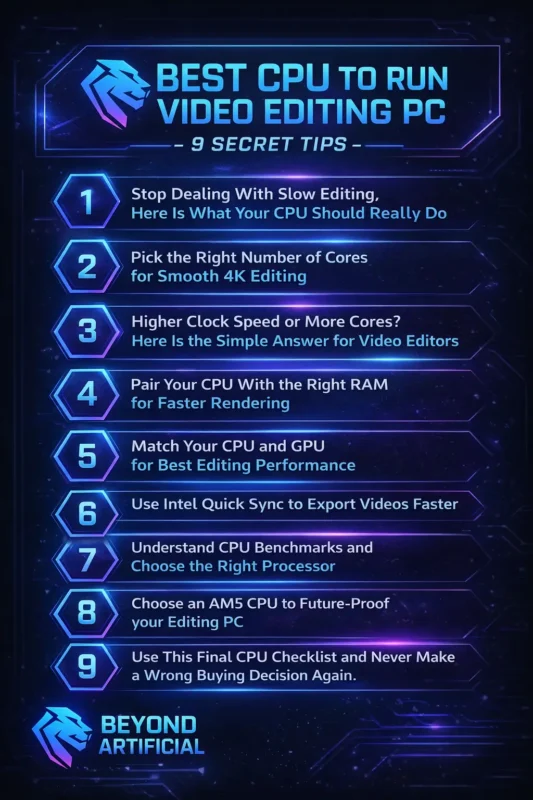
1. Stop Dealing With Slow Editing, Here Is What Your CPU Should Really Do
If your timeline keeps freezing and exporting videos takes too long, your CPU is not powerful enough for video editing. A good CPU should handle many tasks at the same time, work smoothly with heavy video files, and send data quickly to your GPU. Your CPU should help your editing feel fast and smooth, not slow and frustrating. Always choose a CPU with at least 8 to 12 cores. More cores allow your editing software to run many tasks together without slowing down.
This helps with smoother editing, faster rendering, and better performance. Make sure your CPU has a high clock speed (above 4.5 GHz). A higher speed makes your timeline smoother, previews faster, and editing easier. You will notice less lag when cutting, trimming, or adding effects. Also, check if your CPU supports hardware acceleration. Programs like Adobe Premiere Pro and DaVinci Resolve use this feature to export videos much faster and reduce waiting time.
The best CPU for video editing should have both strong single-core performance and good multi-core power. When you choose the right CPU, your editing will become faster, smoother, and much more enjoyable.
2. Pick the Right Number of Cores for Smooth 4K Editing
If your 4K timeline keeps lagging and skipping, the problem is often the number of CPU cores in your PC. CPU cores are very important because they handle all the heavy work, like 4K footage, effects, and color grading at the same time. When your CPU has more cores, your editing software can run smoothly and finish tasks faster. Every video editor should understand that more cores help your computer handle multiple tasks together.
This means smoother playback, faster rendering, and less waiting. For normal 4K video editing, you should choose a CPU with at least 8 cores. Anything less can slow down your work and cause frustration. If you work with multicam 4K footage, heavy effects, or color grading in software like DaVinci Resolve, it is better to choose a CPU with 12 to 16 cores. More cores will make your editing faster and smoother, especially for large and complex projects.
Do not focus only on core count. Always pair your CPU with fast DDR5 RAM so your system can access data quickly and perform better. A good combination of strong CPU cores and fast RAM will improve your overall editing experience. Choosing a powerful CPU with enough cores will give your 4K editing the speed and smooth performance it truly needs.
3. Higher Clock Speed or More Cores? Here Is the Simple Answer for Video Editors.
Many video editors feel confused when choosing between a CPU with a higher clock speed or one with more cores. The truth is simple. Clock speed controls how fast your computer handles single tasks like timeline scrubbing, previews, and quick editing. Core count controls how well your computer handles heavy tasks like rendering, exporting, and using effects at the same time. Understanding this difference can save you from buying the wrong CPU.
If you mostly spend time cutting, trimming, and doing live editing, choose a CPU with a higher clock speed (above 4.5 GHz). A faster clock speed makes your timeline smoother and your editing more responsive. If you spend more time rendering videos, using heavy effects, or exporting large projects, choose a CPU with more cores (12 cores or more). More cores help your computer handle big tasks faster and reduce waiting time.
The best choice is a CPU that gives you a balance of both high clock speed and enough cores. This will give you smoother editing, faster exports, and a much better editing experience. Investing in the right balanced CPU will save you time and make your work easier every day.
4. Pair Your CPU With the Right RAM for Faster Rendering.
Many video editors upgrade their CPU but still face slow rendering. The main reason is often the wrong RAM. Your CPU and RAM work together, and if your RAM is slow or not enough, even a powerful CPU cannot perform well. It will keep waiting for data, and your editing will still feel slow. To get the best performance, always use DDR5 RAM with modern CPUs. DDR5 is faster and helps your CPU get data quickly, which improves editing and rendering speed.
This simple upgrade can make a big difference in your workflow. For smooth 4K video editing, use at least 32GB RAM. If you edit 8K videos, multicam projects, or use heavy effects, then 64GB RAM is a better choice. Low RAM can slow down your computer and force it to use the hard drive, which makes everything much slower. Also, always use dual-channel RAM. This means installing two matching RAM sticks instead of one.
Dual-channel mode gives your CPU faster access to data and improves overall performance. When you pair a strong CPU with fast DDR5 RAM and use a dual-channel setup, your editing will feel smoother, your timeline will respond faster, and your render time will be much shorter.
5. Match Your CPU and GPU for Best Editing Performance
Many video editors buy a powerful CPU but still face lag, slow effects, and long export times. The reason is often the GPU. Your CPU and GPU must work together. If they are not balanced, one part becomes slow, and the whole editing performance suffers. The CPU handles many tasks like processing footage and running the software, while the GPU helps with effects, playback, and faster exports.
When both are strong and matched well, your editing becomes smooth and fast. Always pair a powerful CPU with a good GPU. If you use a high-end CPU, make sure your GPU is also strong enough to support it. This allows features like GPU acceleration in Adobe Premiere Pro and DaVinci Resolve to work properly and speed up rendering and playback. Also, always turn on GPU acceleration in your editing software settings.
If you do not enable it, your CPU will do all the work alone, and your PC will feel slow. Avoid using a weak GPU with a strong CPU because it will create a bottleneck and reduce performance. When you choose a balanced CPU and GPU, your timeline will run smoothly, effects will render faster, and editing will feel much easier and more enjoyable.
6. Use Intel Quick Sync to Export Videos Faster.
If your video export takes too long, Intel Quick Sync can help you a lot. Many video editors do not use this feature, but it can make exporting videos much faster and easier. Intel Quick Sync is a special built-in feature inside many Intel CPUs. It helps encode videos like H.264 and H.265 very quickly without putting too much pressure on your CPU or GPU. This means when you export a video, Quick Sync handles most of the work, and your system runs faster and smoother.
If you work a lot with H.264 or H.265 videos in Adobe Premiere Pro, choose an Intel CPU that supports Quick Sync. This will help you export videos much faster than normal. Also, make sure to turn on hardware encoding in your export settings. This simple step allows Intel Quick Sync to work properly and can reduce export time a lot. Always keep your Intel graphics drivers updated because old drivers can slow down Quick Sync without you noticing. Updated drivers keep your export speed fast and stable.
When you use Intel Quick Sync with the right settings and a fast SSD, your export time becomes much shorter, and video editing feels faster and less stressful.
7. Understand CPU Benchmarks and Choose the Right Processor.
Many video editors feel confused when they see CPU benchmark numbers and scores. These numbers can look complicated, but they are actually simple. A CPU benchmark is just a test that shows how fast and powerful a processor is. Understanding these scores helps you choose the right CPU for video editing and avoid wasting money. When checking CPUs for video editing, always look at multi-core benchmark scores first.
These scores show how well a CPU handles heavy tasks like rendering and exporting videos. Higher multi-core scores usually mean faster render and export times. You should also check single-core scores. A strong single-core score helps with timeline scrubbing, smooth previews, and quick software response. This makes your daily editing experience faster and more enjoyable. Do not compare all benchmark scores in the same way. A CPU that performs well in gaming tests may not perform the same in video editing.
Editing and rendering need different types of performance. Always check benchmark scores on trusted websites and read real user reviews before buying a CPU. When you understand benchmark scores, you can choose the right processor with confidence and get better performance for your video editing work.
8. Choose an AM5 CPU to Future-Proof Your Editing PC.
It feels very frustrating to build a new editing PC and then find out after two years that you cannot upgrade it anymore. When the platform is no longer supported, you are forced to replace the motherboard and other parts, which costs more money. The AMD AM5 platform helps solve this problem. AMD has promised to support the AM5 socket for many years. This means you can upgrade to newer AMD CPUs in the future without changing your motherboard.
Choosing an AM5 CPU today means you are building a system that can grow with you. When selecting an AM5 motherboard, choose one with a strong power system (VRM) and PCIe 5.0 support. This allows your PC to handle faster future GPUs and NVMe SSDs without needing a new board later. Also, start with DDR5 RAM. DDR5 is the new standard, and using it now keeps your system modern and ready for future upgrades.
It is also smart to choose a motherboard with BIOS flashback support. This makes it easier to update your motherboard so it can work with new CPUs in the future. By choosing the AMD AM5 platform, you are building a future-ready editing PC. This gives you better upgrade options, saves money in the long run, and keeps your video editing performance strong for years.
9. Use This Final CPU Checklist and Never Make a Wrong Buying Decision Again.
Many video editors buy a CPU with excitement, but later realize it does not match their editing needs, software, or future upgrade plans. This can waste money and slow down your work. That is why using a simple CPU checklist before buying is very important. Start by checking the core count. Choose at least 8 cores for 4K editing and 16 cores for 8K or heavy projects. More cores help your computer handle big editing tasks smoothly.
Next, make sure the CPU works well with your editing software. If you use Adobe Premiere Pro, an Intel CPU with Quick Sync can help with faster exports. If you use DaVinci Resolve, a strong multi-core CPU works best for smooth performance. Also, balance your total budget. Do not spend all your money only on the CPU. A powerful CPU needs good RAM, a strong GPU, and a fast SSD to perform properly. If other parts are weak, your editing will still feel slow.
Always go through this checklist before buying a CPU. It will help you choose the right processor, avoid regret, and build an editing PC that works smoothly and efficiently.
FREQUENTLY ASKED QUESTIONS(FAQs)
Which CPU is best for video editing?
The best CPU for video editing is one with a high core count and strong clock speed for smooth editing and fast rendering. Choose at least 8–12 cores (or more for 4K/8K work) from Intel or AMD to enjoy faster exports, smoother timelines, and zero frustration.
What is a good CPU speed for video editing?
A good CPU speed for video editing is at least 4.0 GHz, but 4.5 GHz or higher gives you much smoother timeline playback and faster response. Higher clock speed means less lag while scrubbing, quicker previews, and a more enjoyable, stress-free editing experience.
Does video editing need a good CPU?
Yes, a powerful CPU is the heart of smooth video editing and fast rendering performance. A strong multi-core processor with high clock speed prevents lag, speeds up exports, and keeps your creative workflow stress-free.
What is the minimum CPU for 4K video editing?
For smooth 4K video editing, you need at least an 8-core CPU with strong performance. A modern Intel or AMD processor with high clock speed will reduce lag, speed up rendering, and keep your timeline running smoothly.
What is the 80/20 rule in video editing?
The 80/20 rule means 80% of a great video comes from just 20% of the most important edits. Focus on clean cuts, good storytelling, and clear audio first; these small changes create the biggest impact on your final video.
Best cpu to run video editing pc for gaming
Choosing the best CPU for a video editing and gaming PC can feel confusing and stressful. There are so many options, and it is hard to know which one will handle both heavy video editing and high-performance gaming smoothly. You do not want to waste money on the wrong processor or end up with a system that struggles under pressure. The good news is that the right CPU can handle both tasks easily. A strong processor gives you enough cores for fast video editing and high clock speeds for smooth gaming.
When you choose a balanced CPU, you can edit 4K videos during the day and enjoy lag-free gaming at night without any problems. Once you understand what features matter most, choosing the right CPU becomes much easier. You can build a powerful PC that supports your creative work and your gaming performance without overspending.
Here is what the right CPU can do for you:
1. Reduces frame drops during heavy gaming
2. Speeds up rendering and exporting in Premiere Pro and DaVinci Resolve
3. Handles 4K editing and modern games on the same system
4. Prevents timeline freezing during complex projects
5. Keeps your PC ready for future upgrades in editing and gaming